Creating a Microsoft Account
Create an Elemental account using your Microsoft sign-in on the website or in the mobile app
 Microsoft Accounts
You can create your Elemental account with your Microsoft account, so there is no separate password to remember.
If you are a student and your school already uses Elemental with Microsoft, you do not need to create an account. Sign in with Microsoft using your school account instead.
Prerequisites
- A Microsoft account (use your school Microsoft account if your school uses Microsoft Teams)
- For schools: Microsoft permissions approved by ITGo
On the Website
- 1
Tell Us Who You Are
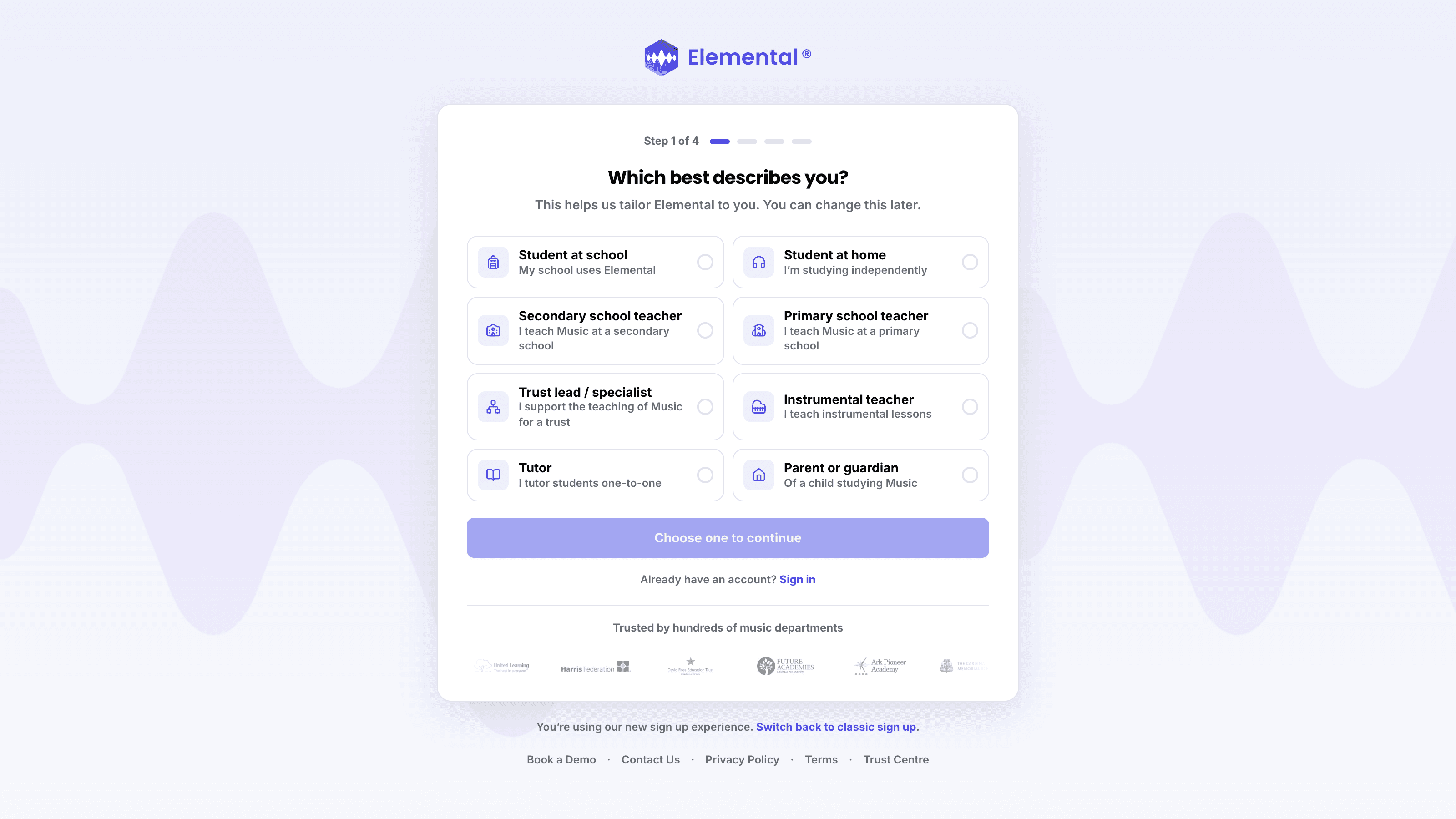
Open the sign-up pageGo to elementalmusic.app and select Start 30-Day Free Trial at the top of the page. Choose the option that best describes you, then select Continue.
- 2
Choose to Sign Up with Microsoft
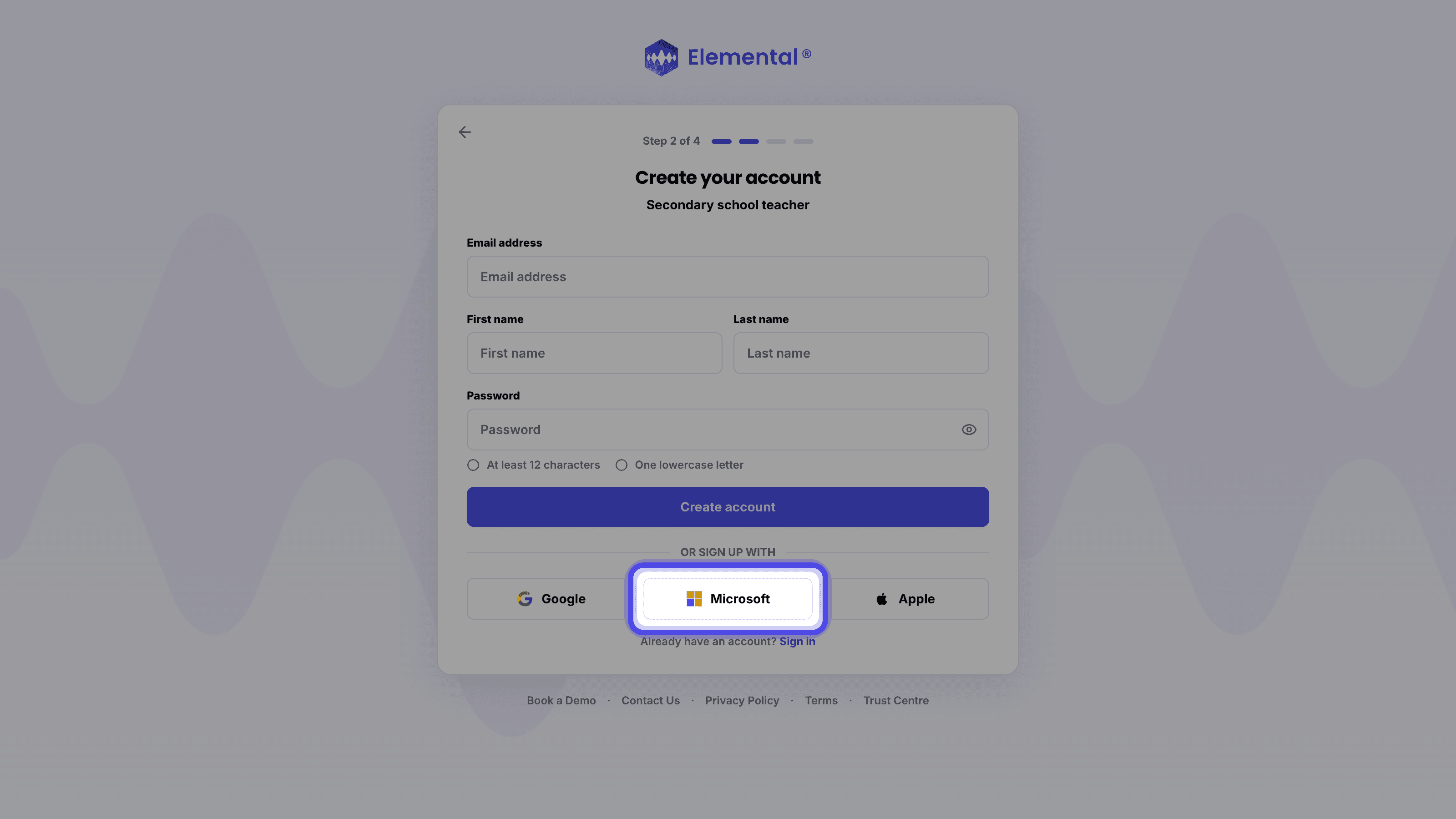
On the Create your account page, accept the terms if shown, including the confirmation that you are at least 13 years old, then select Microsoft under OR SIGN UP WITH.
If you have not already entered one, a Microsoft email address field appears so we can connect your account. Enter the address of the Microsoft account you want to use, then select Microsoft again.
- 3
Enter Your Microsoft Account
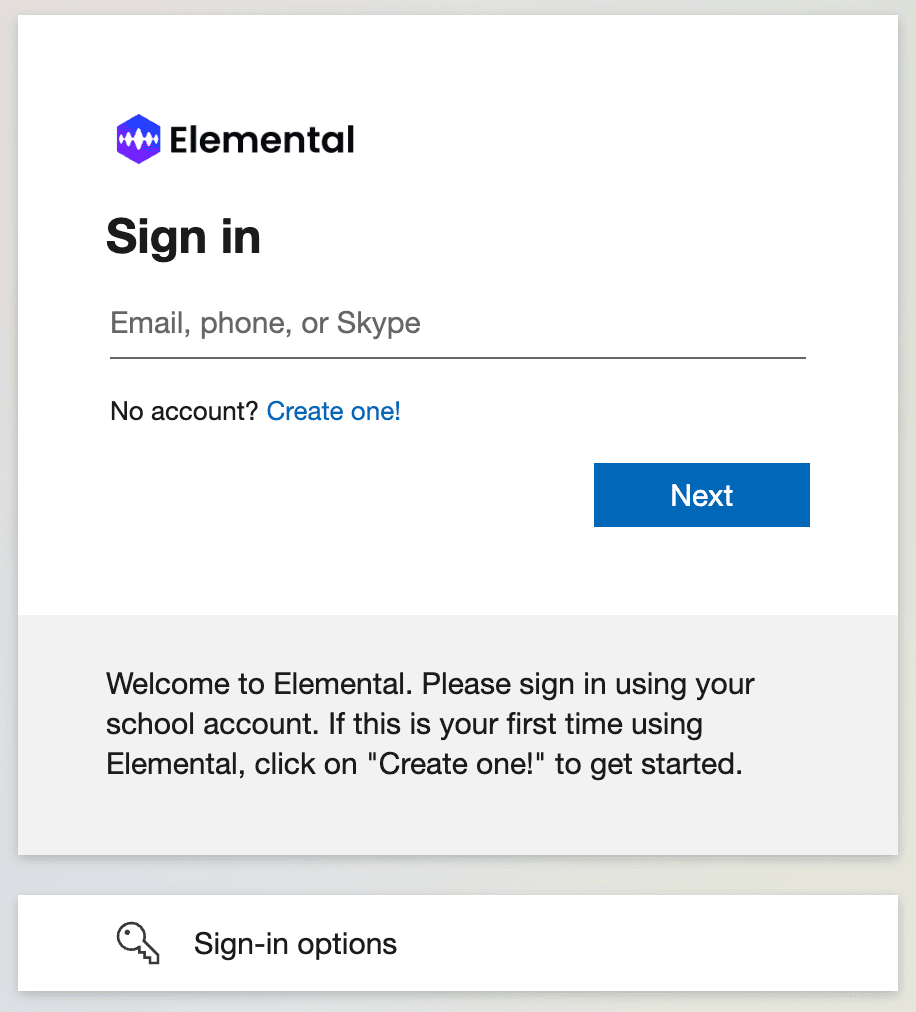
Microsoft will ask which account to use. Enter the account your Elemental account is linked to (your school Microsoft account if your school set Elemental up for you) then select Next.
- 4
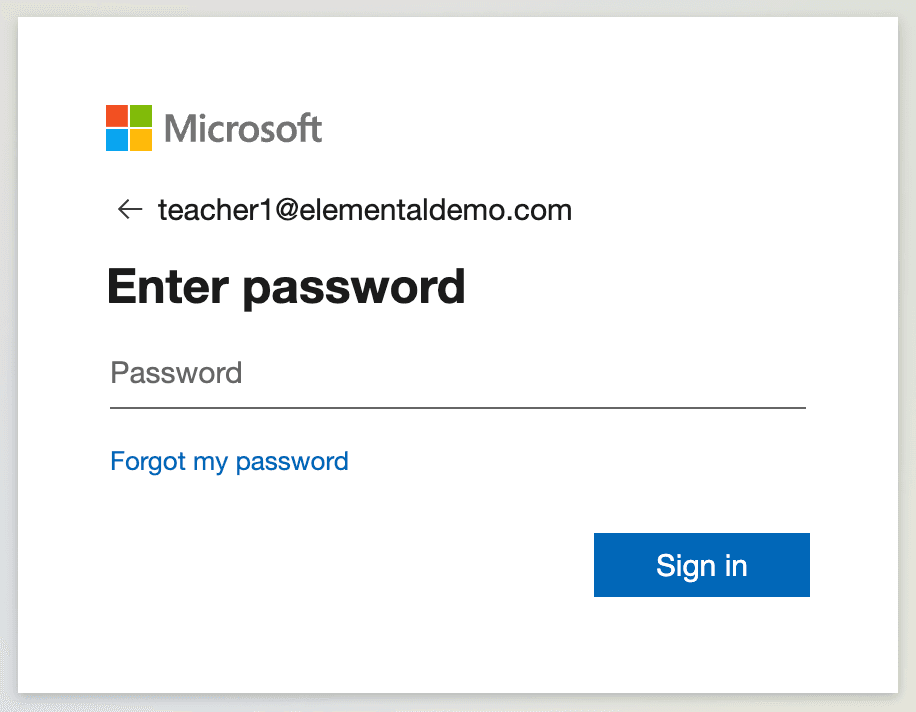
Enter Your Microsoft Password
Enter your Microsoft password and select Sign in. You will be brought back into Elemental with your new account.
In the Mobile App
- 1
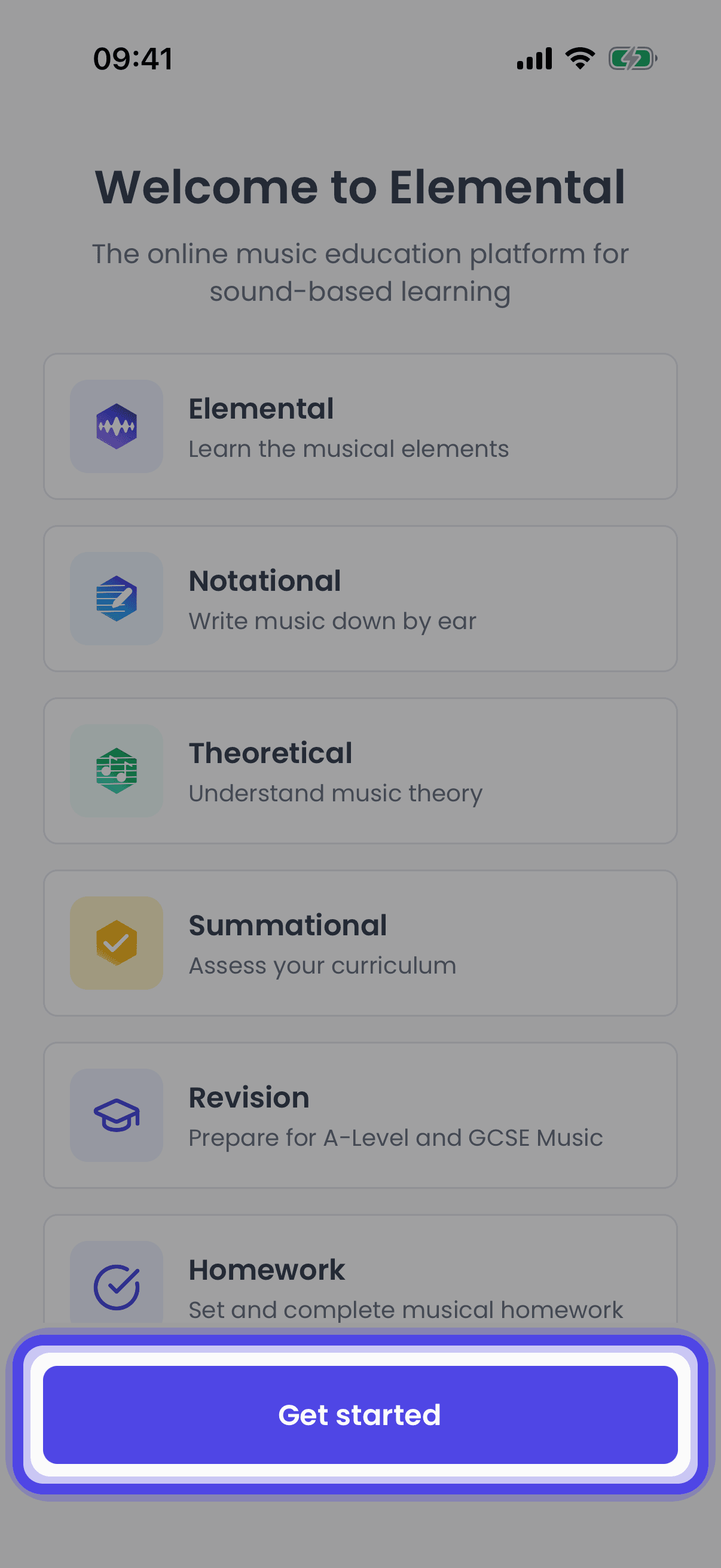
Open the App
Open the Elemental app. If you see the welcome screen, tap Get started.
- 2
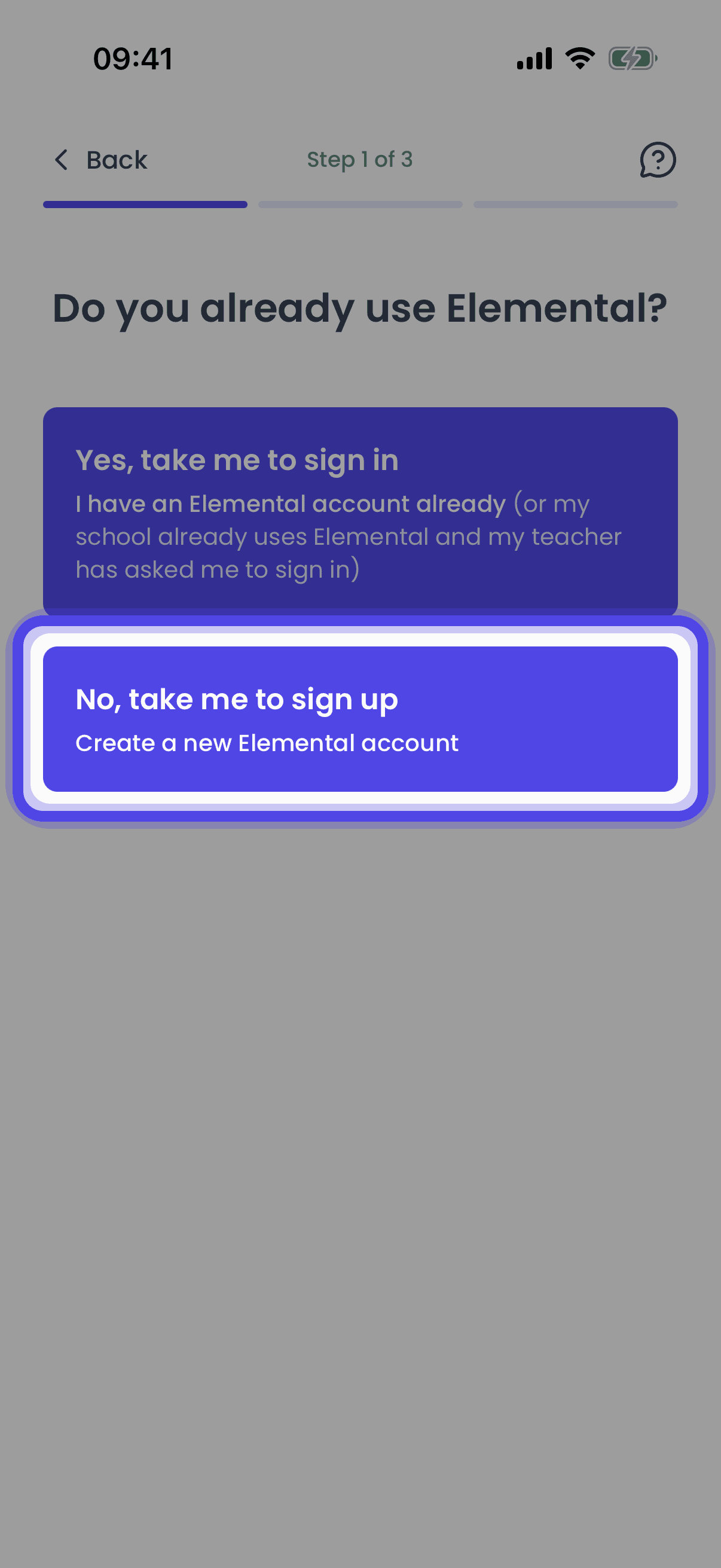
Go to Sign Up
Choose No, take me to sign up.
- 3
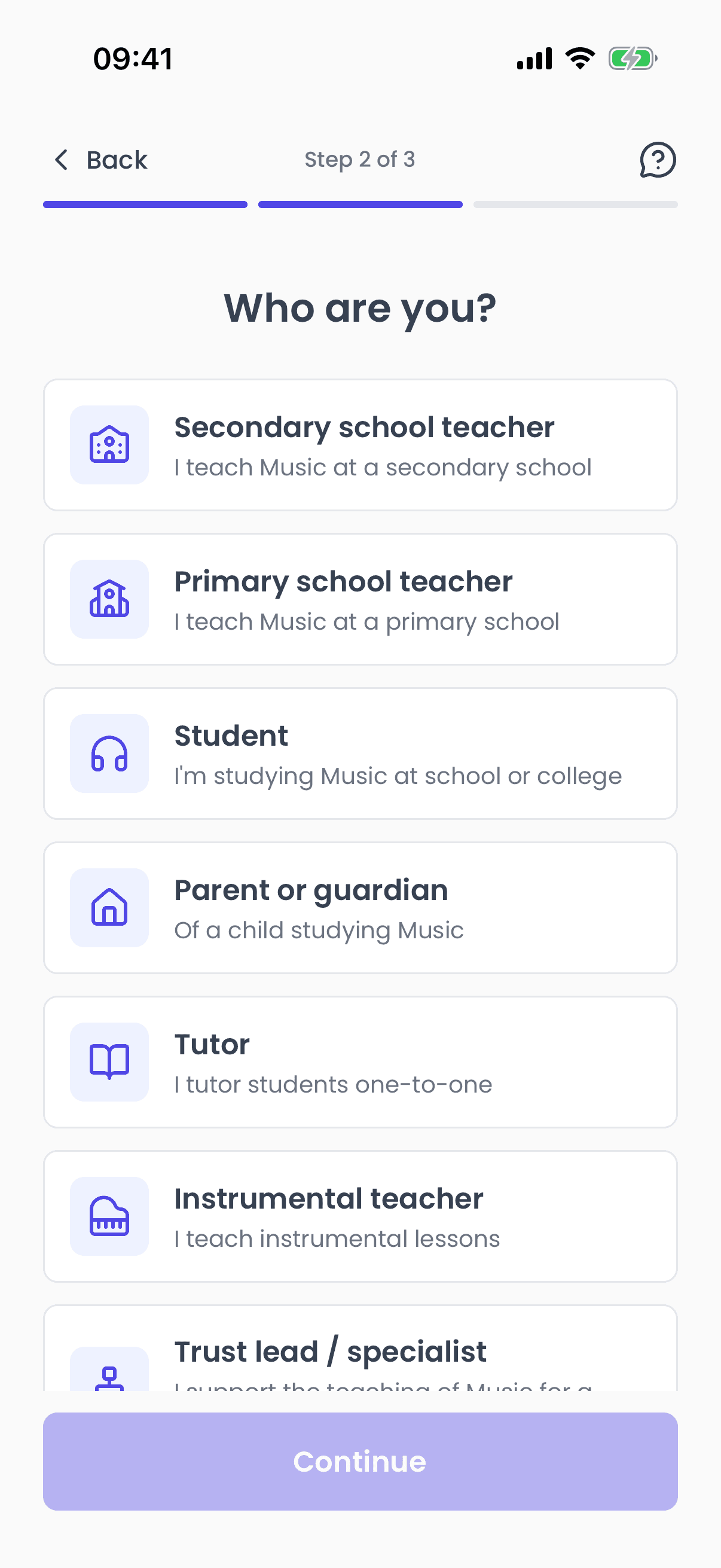
Tell Us Who You Are
Choose the option that best describes you, then continue.
- 4
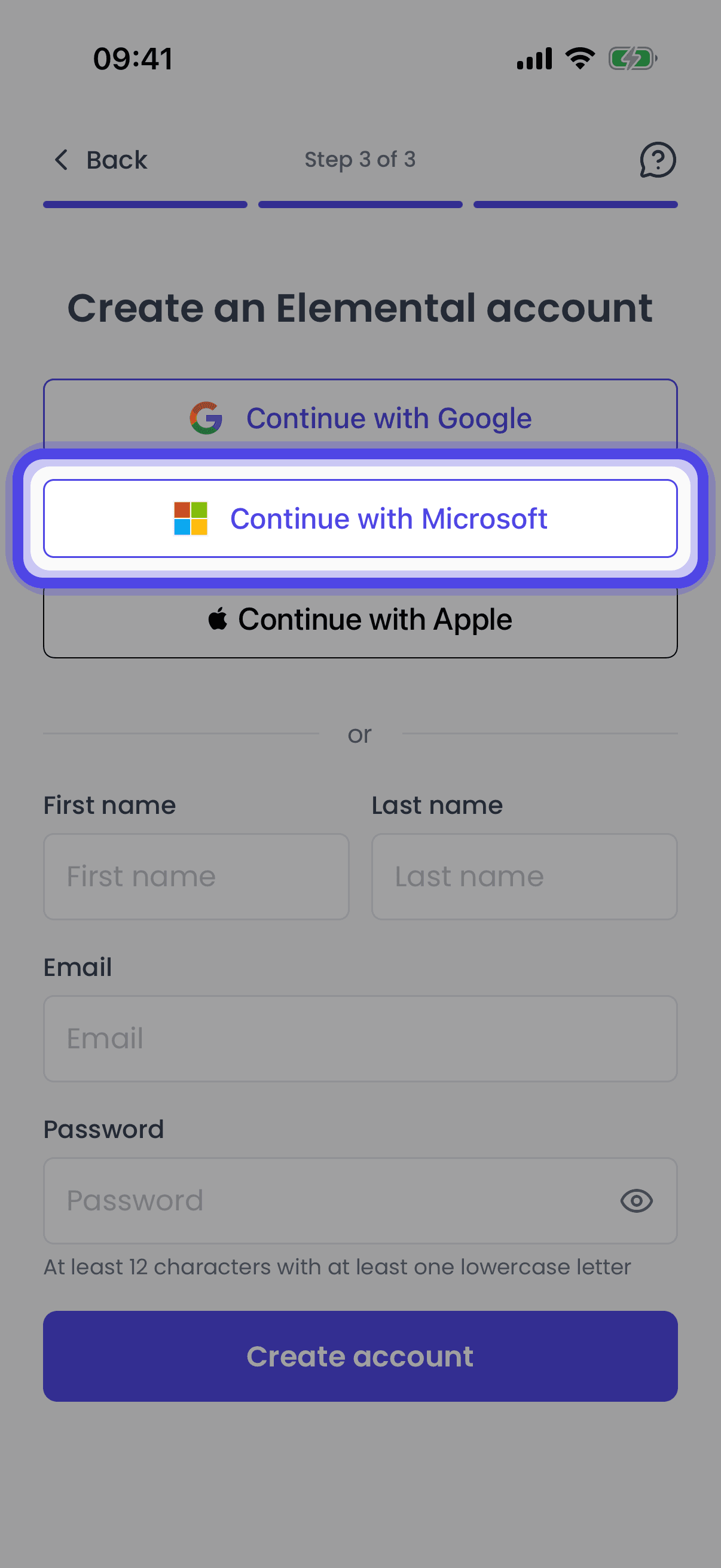
Tap Continue with Microsoft
On the Create an Elemental account screen, tap Continue with Microsoft and confirm your account in the window that appears. You will be returned to the app, signed in with your new account.
Related Articles
Create an Elemental account with an email address and a password on the website or in the mobile app
Creating a Google AccountCreate an Elemental account using your Google sign-in on the website or in the mobile app
Signing in with MicrosoftSign in to Elemental with your Microsoft account on the website or in the mobile app
Last updated: 12 Sep 2026