
Using a Teacher's Student Account
Activate a separate student account for 24 hours to see and use Elemental as your students do
Teachers and school admins can activate a separate student account, so you can try Elemental exactly as a student would. It is useful when you need to show your students how Elemental works, check what they will see, or take screenshots and videos for training resources.
For security reasons, a student account can only be activated for 24 hours at a time. You can activate it again whenever you need it.
Prerequisites
- A teacher or school admin account
Activating Your Student Account
- 1
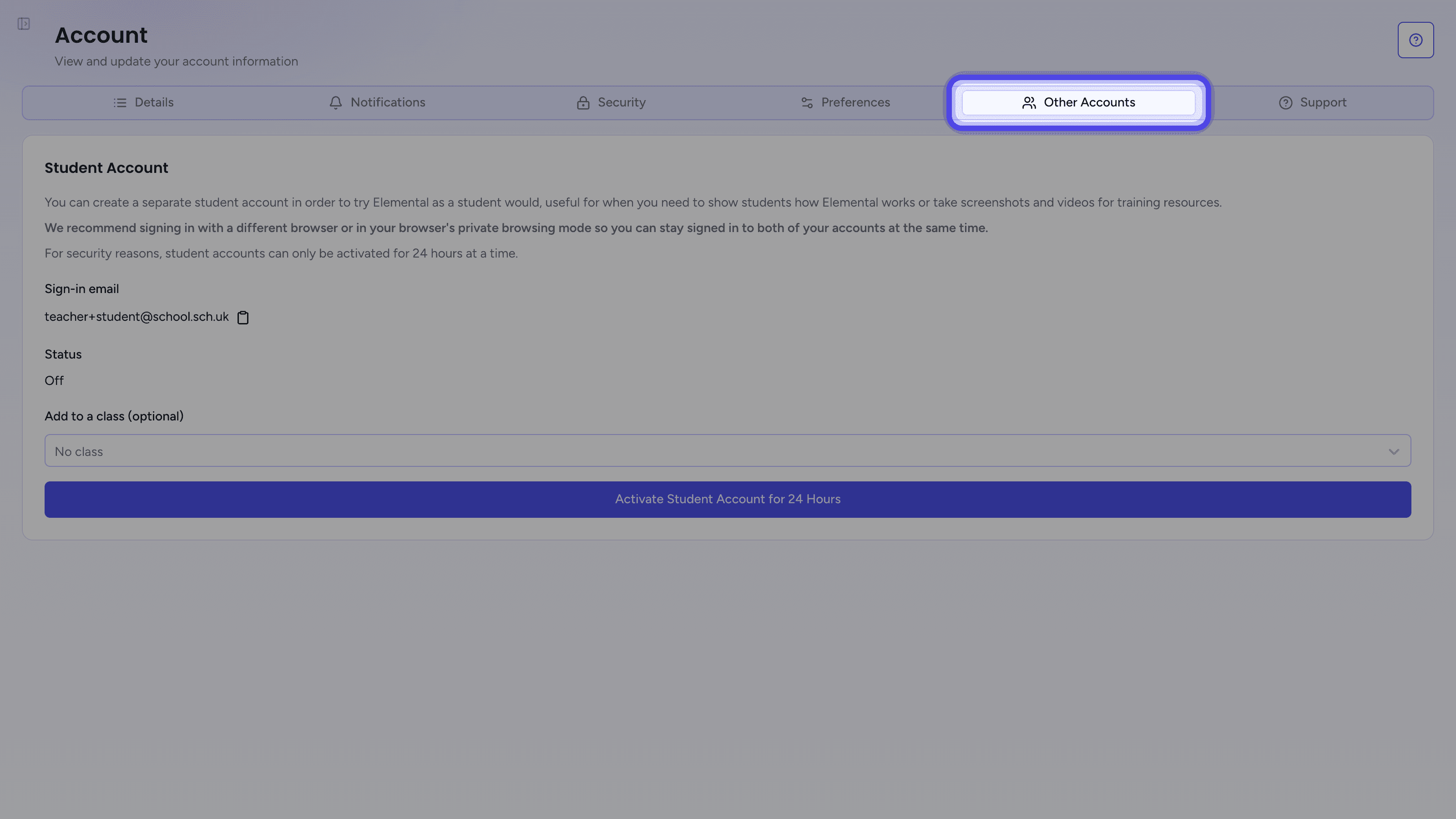
Open Other Accounts
Open Other AccountsClick your name at the bottom of the sidebar, choose Account, then click the Other Accounts tab. The Student Account card shows the account's Sign-in email, which is your own email address with +student added before the @ (so j.smith@school.org becomes j.smith+student@school.org).
- 2
Choose a class (optional)
To see Elemental as a member of one of your classes, choose the class under Add to a class (optional). The student account joins that class and sees all of its homework, including homework you set before it joined. Leave it as No class to use the student account on its own.

- 3
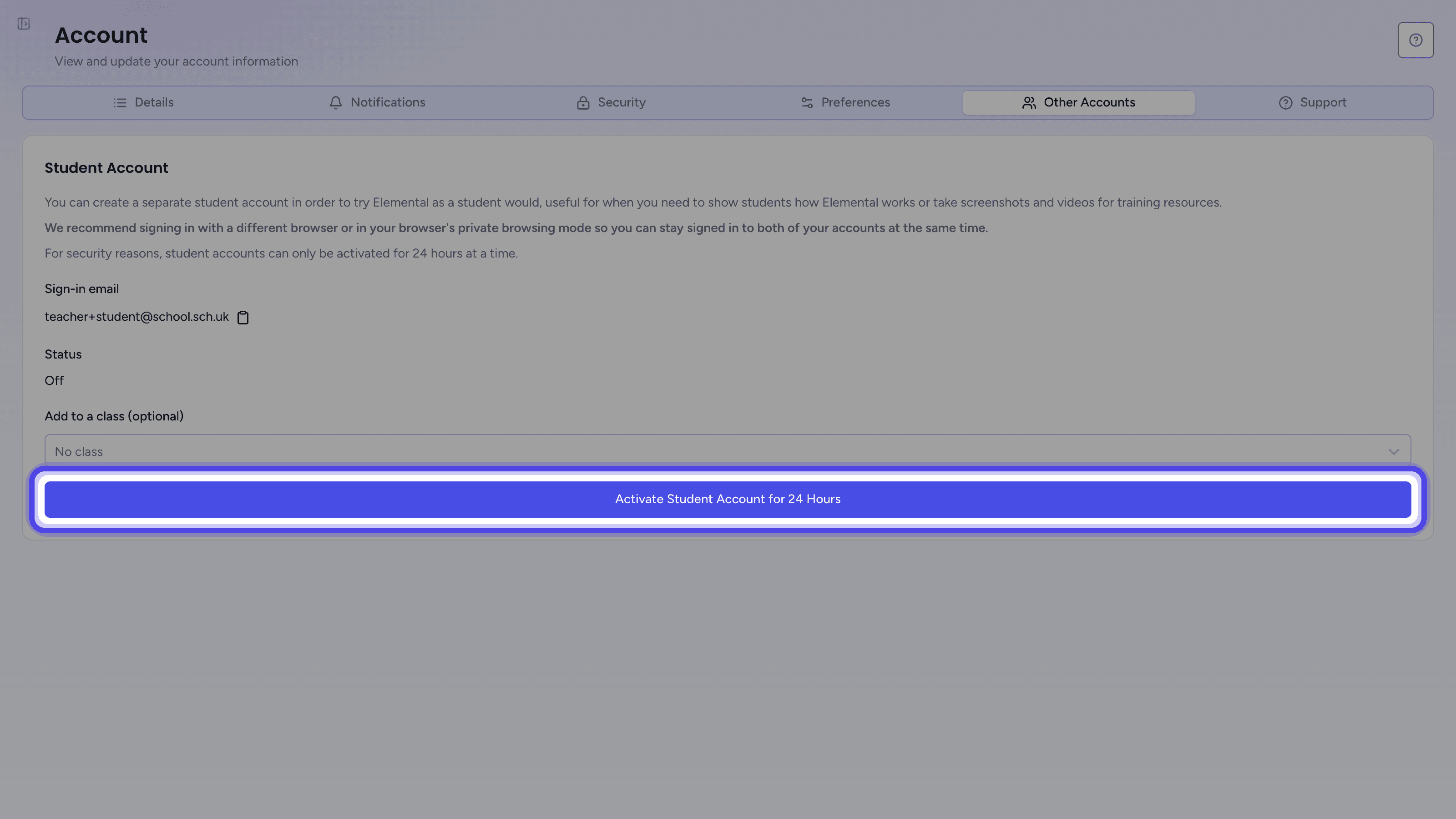
Activate the account
Click Activate Student Account for 24 Hours.
- 4
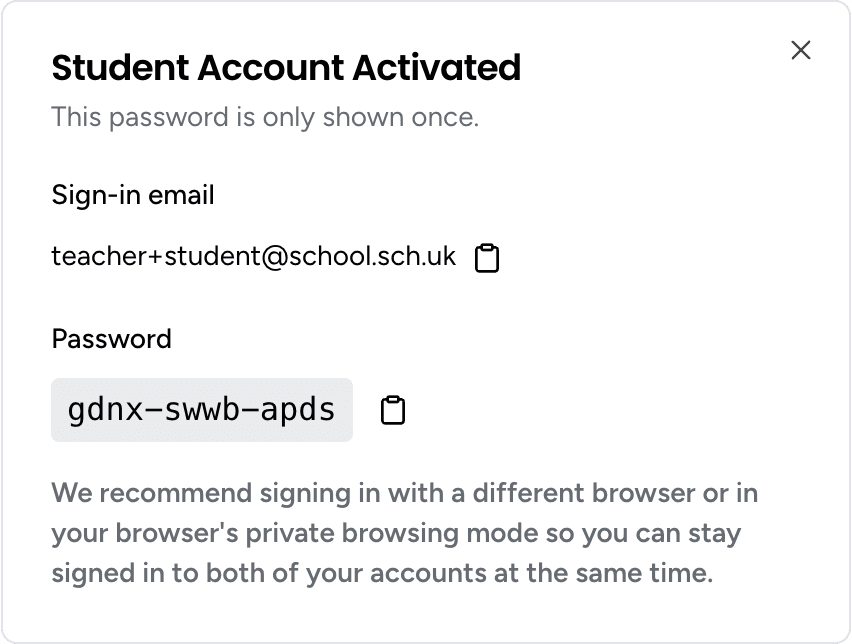
Copy the password
The Student Account Activated dialog shows the sign-in email and a new password, each with a copy button. Copy the password before you close the dialog, as it is only shown once.
The Student Account in Your Class
The student account is named after you, with (Student View) after your last name. If you added it to a class, it appears in that class's student list on the Classes & Students page, and its homework results appear alongside your students' results.
If your classes come from Google Classroom or Microsoft Teams, the student account only joins the class in Elemental. It is not added to the class in Google Classroom or Teams, so it does not show in the class's student list (which comes from there), and its marks are never sent back. It still sees and completes the class's homework in Elemental.
Signing In as a Student
Sign in with the student account in a different browser, or in your browser's private browsing mode, so you can stay signed in to your own account at the same time.
The student account always signs in with its email address and password, even if your school usually signs in with Google or Microsoft. Enter the sign-in email, select Continue, then enter the password (see Signing in with Email / Password).
Deactivating Your Student Account
- 1
Deactivate the account
Open Other AccountsWhile the account is active, Status on the Other Accounts tab shows On until followed by the date and time it switches off. To switch it off sooner, click Deactivate Student Account.

Once the account is deactivated, or the 24 hours are up, its password stops working. Activating it again gives you a new password for the same student account, so anything it has done is kept.
Troubleshooting
I Closed the Dialog Before Copying the Password
The password cannot be shown again. Click Deactivate Student Account, then Activate Student Account for 24 Hours to get a new one.
The Student Account Will Not Sign In
Check that Status on the Other Accounts tab shows On until. If it shows Off, the 24 hours are up or the account was deactivated, so activate it again and use the new password. Each activation replaces the previous password.
I Was Signed Out of My Own Account
A browser window can only be signed in to one Elemental account at a time. Sign in to the student account in a different browser or a private browsing window to stay signed in to both.
I Cannot See the Other Accounts Tab
Only teachers and school admins can activate a student account, so students do not see this tab.
Related Articles
Last updated: 17 Oct 2026