Hiding Microsoft Teams Classes
Hide a Microsoft Teams class from your school's class lists, and unhide it again later
 Microsoft Accounts
If your school's classes come from Microsoft Teams, a school admin can hide any class from Elemental's class lists. Hiding a class does not remove it from Microsoft Teams.
Hiding a class hides it for everyone at your school, not just for you. Other teachers will see the change the next time they sign in.
Prerequisites
- A school admin account (only admins can hide and unhide classes)
- Classes that come from Microsoft Teams
Hiding a Class
- 1
Open Classes & Students
Open Classes & StudentsChoose Manage, then Classes & Students in the sidebar.
- 2
Select the class
Click the class you want to hide in the list on the left. Its name appears at the top of the panel on the right.
- 3
Open the class options
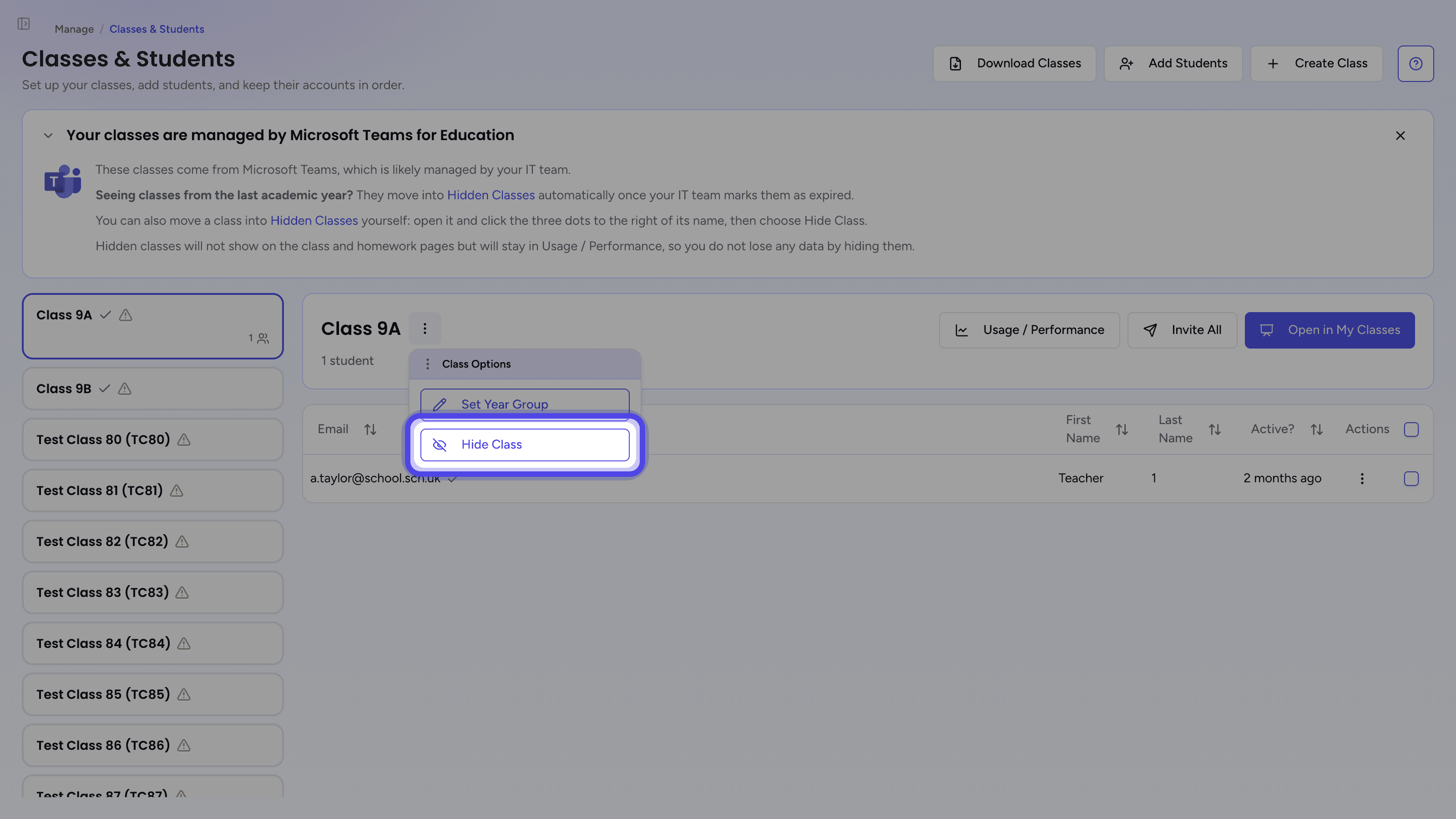
Click the three-dot Class Options button to the right of the class name.
- 4
Choose Hide Class
Select Hide Class from the menu.
- 5
Confirm
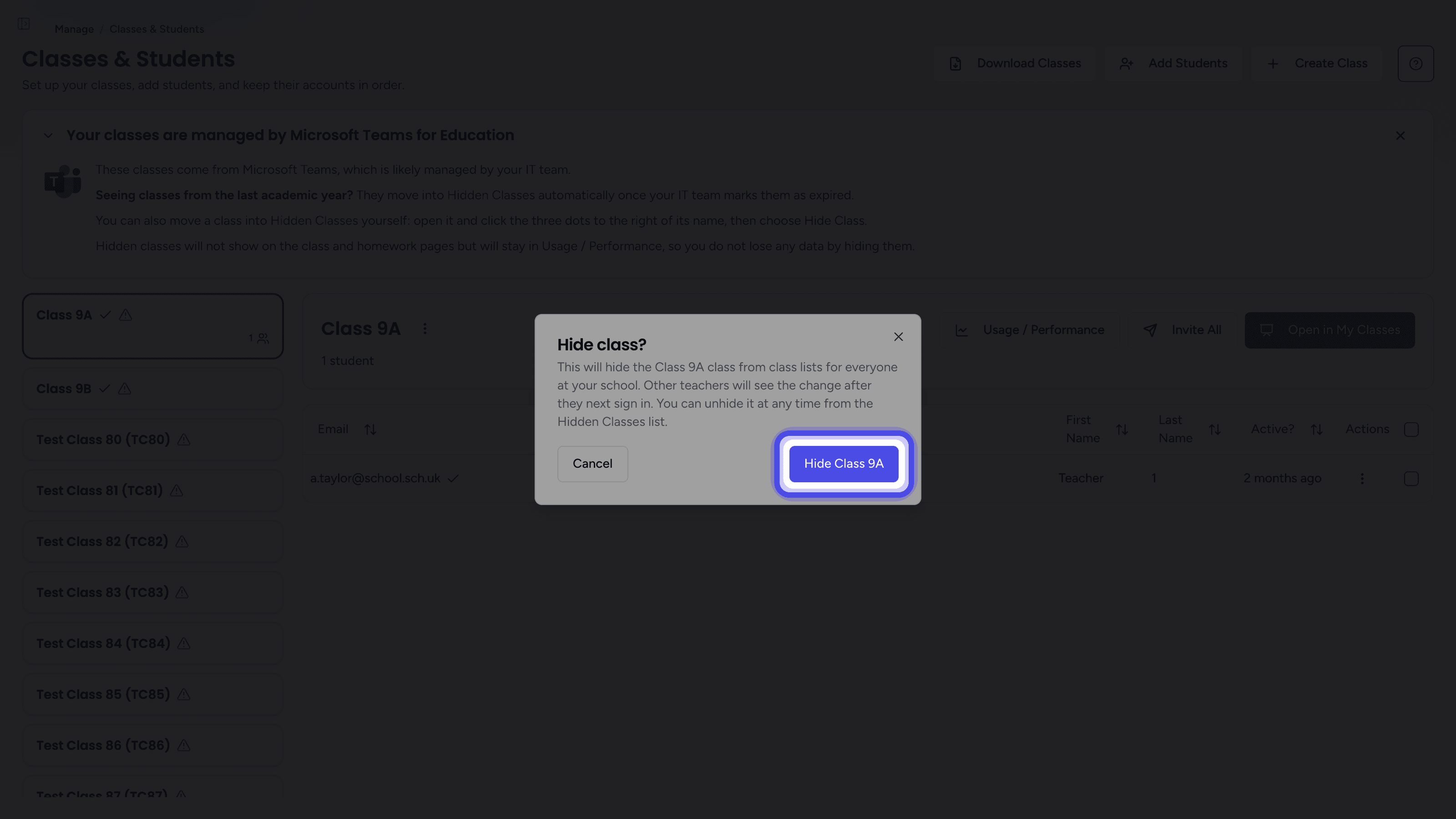
The Hide class? dialog explains what will change. Click the Hide button, which is labelled with the name of the class, to confirm. A Class Hidden message confirms the change.
What Happens to a Hidden Class
A hidden class is taken out of the class lists that teachers work from, e.g.
| Page | What changes |
|---|---|
| Classes & Students | The class moves into the Hidden Classes list. |
| Homework | The class is no longer offered when you set or review homework. |
| My Classes | The class is no longer listed. |
Nothing is deleted. The class still exists in Microsoft Teams, students keep their accounts and their marks, and the class's results stay in Usage / Performance, so you do not lose any data by hiding a class.
Where Hidden Classes Go
As soon as your school has at least one hidden class, a Hidden Classes card appears at the bottom of the class list, with a count of the classes it holds. Open it to see every hidden class and why it is hidden. Teachers can open this list too, but only admins can change it.
The Reason column shows one of:
| Reason | What it means |
|---|---|
| Hidden manually | An admin hid this class. These are listed first, and they are the only ones that can be unhidden here. |
| Hidden by your school settings | The class name starts with the text set in Archived class names start with... on the School Preferences page. |
| Not included by your school settings | Your school settings list which class names to include, and this one does not match any of them. |
| Hidden by Microsoft as the class has expired | Your IT team has marked the class as expired in Microsoft Teams. |

Unhiding a Class
- 1
Open the Hidden Classes list
Open Hidden ClassesClick Hidden Classes at the bottom of the class list on the Classes & Students page.
- 2
Find the class
Classes hidden by an admin are listed first and show Hidden manually in the Reason column.
- 3
Click Unhide
Click Unhide on that row. A Class Unhidden message confirms that the class is back in your class lists.
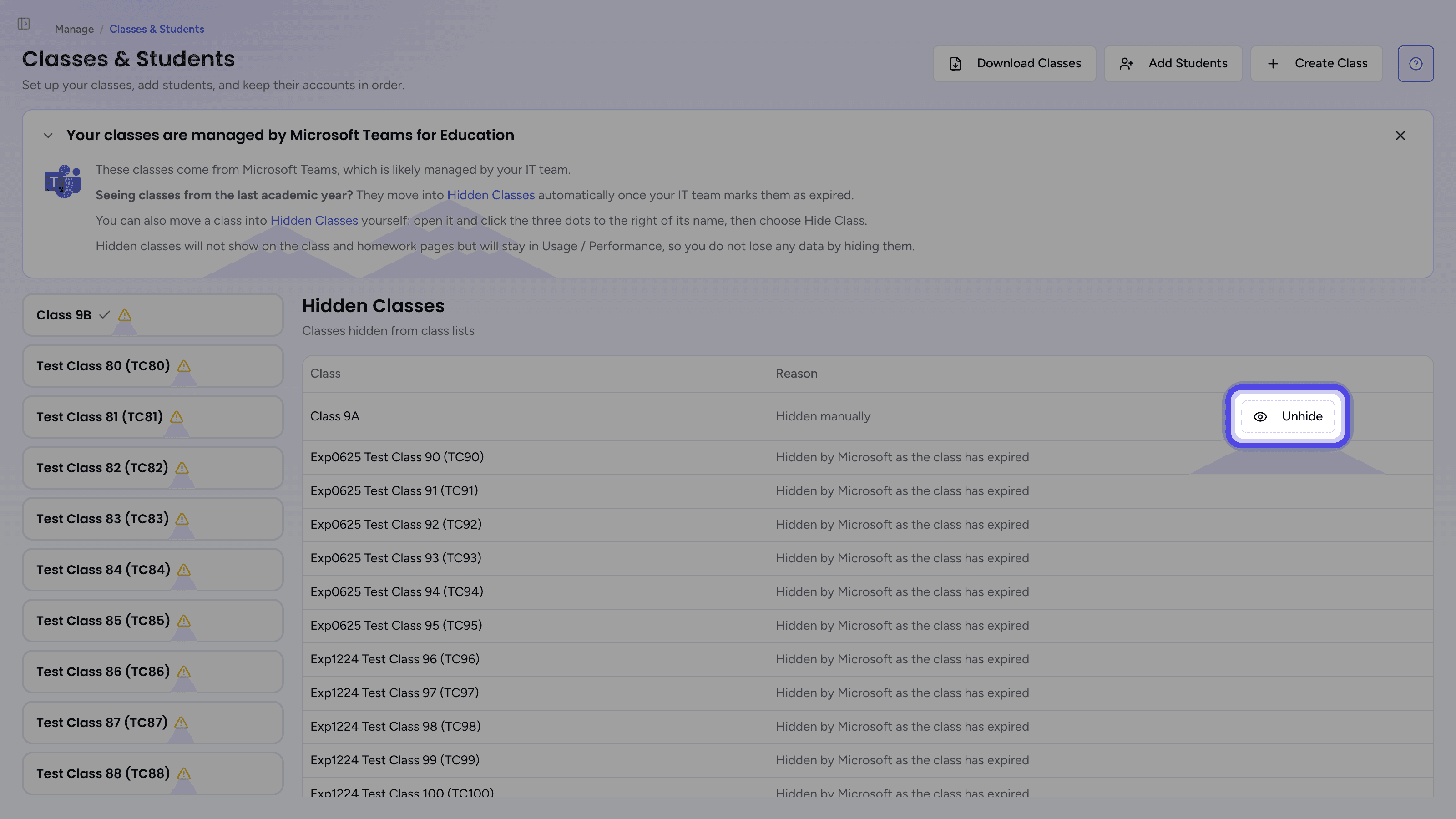
Only classes shown as Hidden manually have an Unhide button. A class hidden by your school settings needs its rule changing on the School Preferences page, and an expired Microsoft Teams class has to be reinstated by your IT team.
Troubleshooting
I Cannot See Hide Class in the Menu
Hide Class only appears for school admins at schools whose classes come from Microsoft Teams. If you are a teacher, ask a school admin to hide the class for you.
A Teacher Can Still See a Class I Hid
Changes to the hidden class list reach other teachers the next time they sign in. Ask them to sign out and back in if they need to see the change straight away.
I See a Message About Too Many Hidden Classes
Hiding classes one at a time is meant for a handful of classes. If you reach the limit, hide them as a group instead by setting the text they share in Archived class names start with... on the School Preferences page.
A Hidden Class Has Come Back
Hiding matches a class by its exact name. If the class is renamed in Microsoft Teams it no longer matches, and it will return to your class lists. Hide it again under its new name.
Related Articles
Last updated: 12 Sep 2026