Elemental Help Guides

Find answers to common questions.

Turning Sounds On or Off

Choose whether Elemental plays sounds when you answer a question and when you finish a quiz

Applies to:
All Account Types
|
All Roles

Elemental can play sound effects while you take a quiz: one sound when you get a question right, a different sound when you get it wrong, and a short fanfare when you finish a quiz with a passing score. You can turn the answer sounds and the fanfare on or off separately, on the website and in the mobile app.

SettingWhat you hearStarts
Play Sounds on Answer? (website), On answer (app)A sound after each answer, with one sound for a correct answer and another for an incorrect oneOff
Play Sounds on Quiz Completion? (website), On completion (app)A fanfare when you finish a quiz with a passing scoreOn

Prerequisites

  • You must be signed in to ElementalSign In

On the Website

  1. 1

    Open your preferences

    Open Preferences

    Click your name at the bottom of the sidebar, choose Account, then click the Preferences tab.
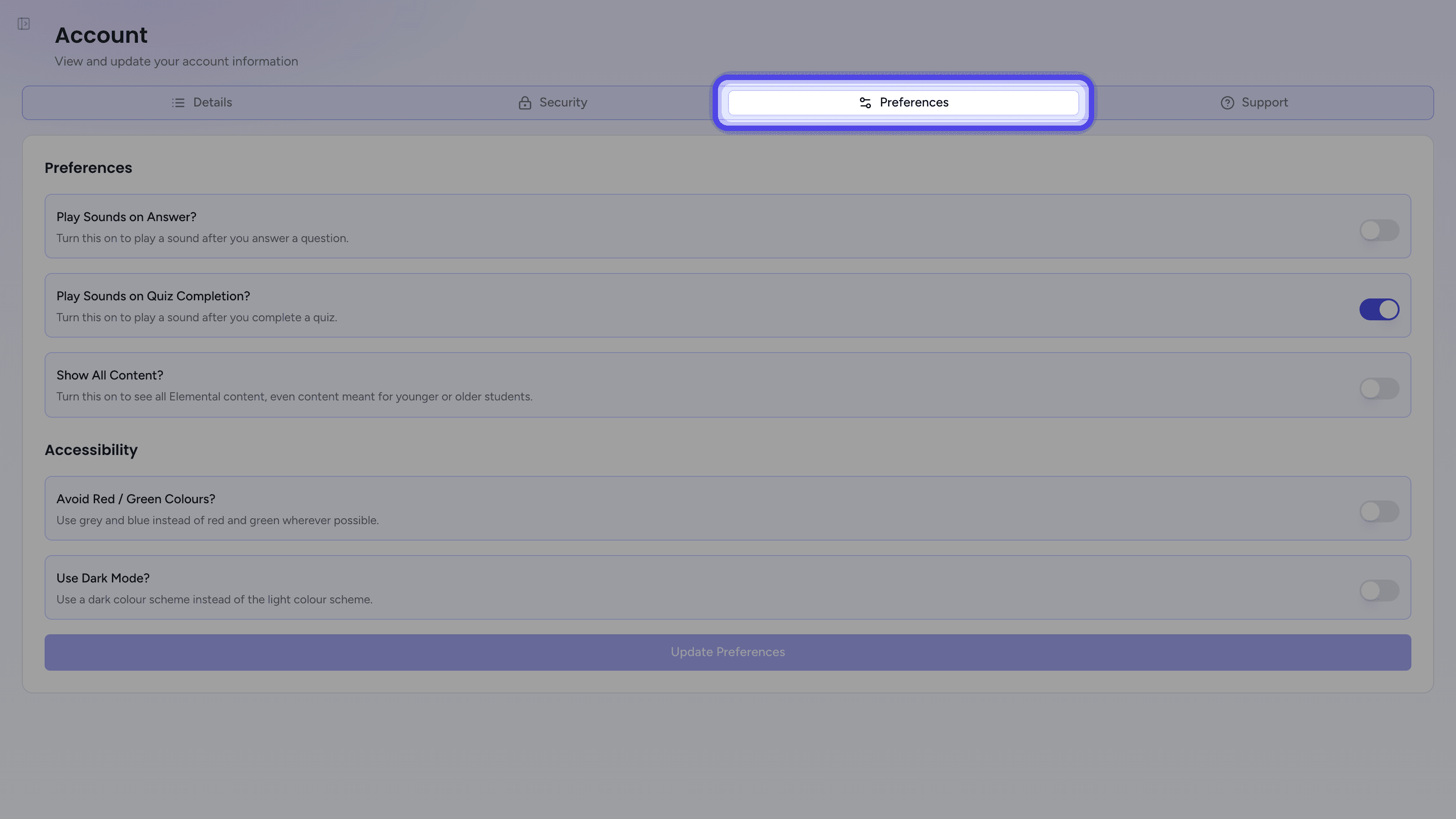
    The Account page with the Preferences tab highlighted
  2. 2

    Choose the answer sounds

    Switch Play Sounds on Answer? on to hear a sound after each answer you give, or off to answer questions in silence.
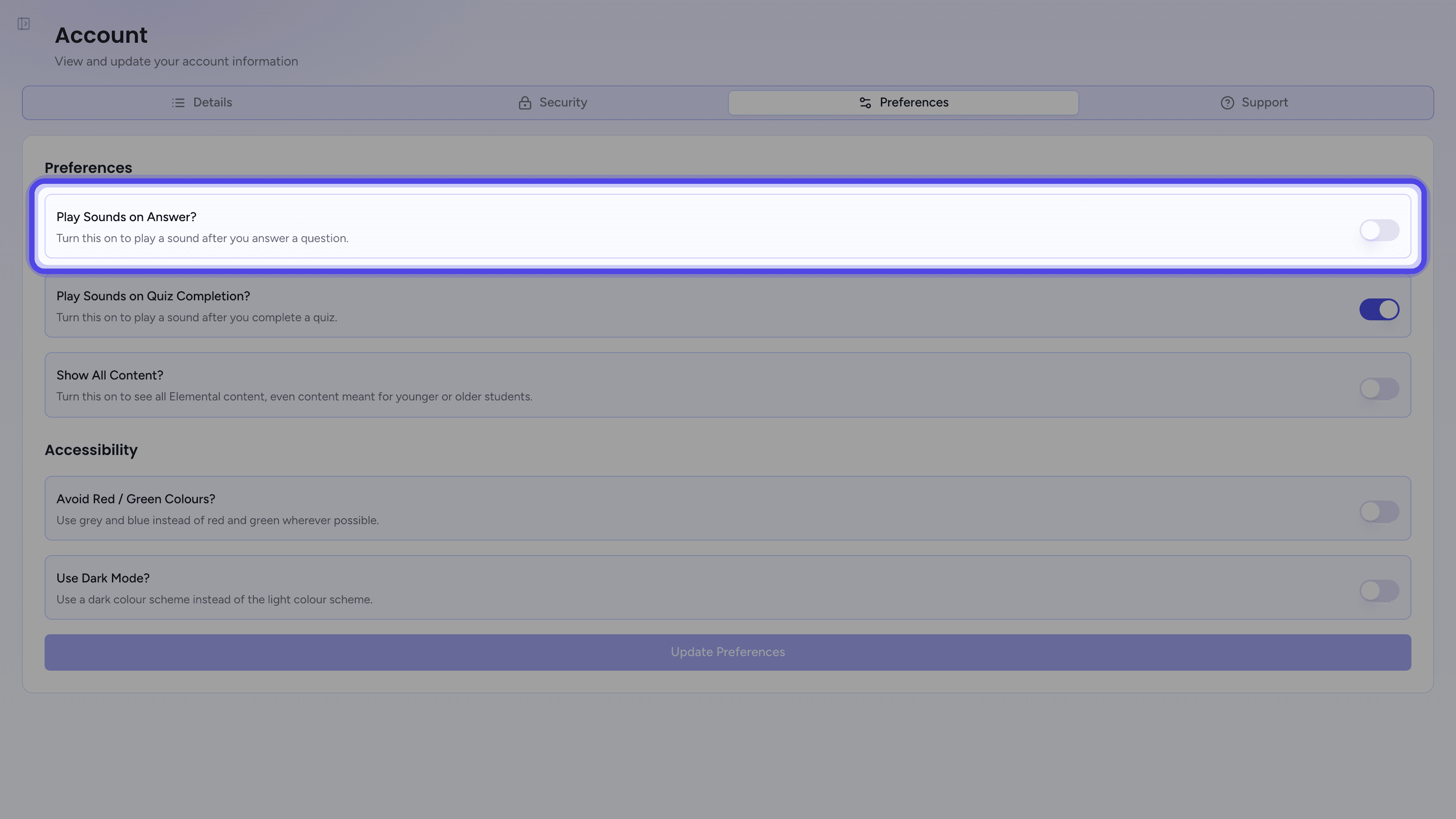
    The Preferences tab with the Play Sounds on Answer? setting highlighted
  3. 3

    Choose the quiz completion sound

    Switch Play Sounds on Quiz Completion? on to hear a fanfare when you finish a quiz with a passing score, or off to finish quizzes quietly.
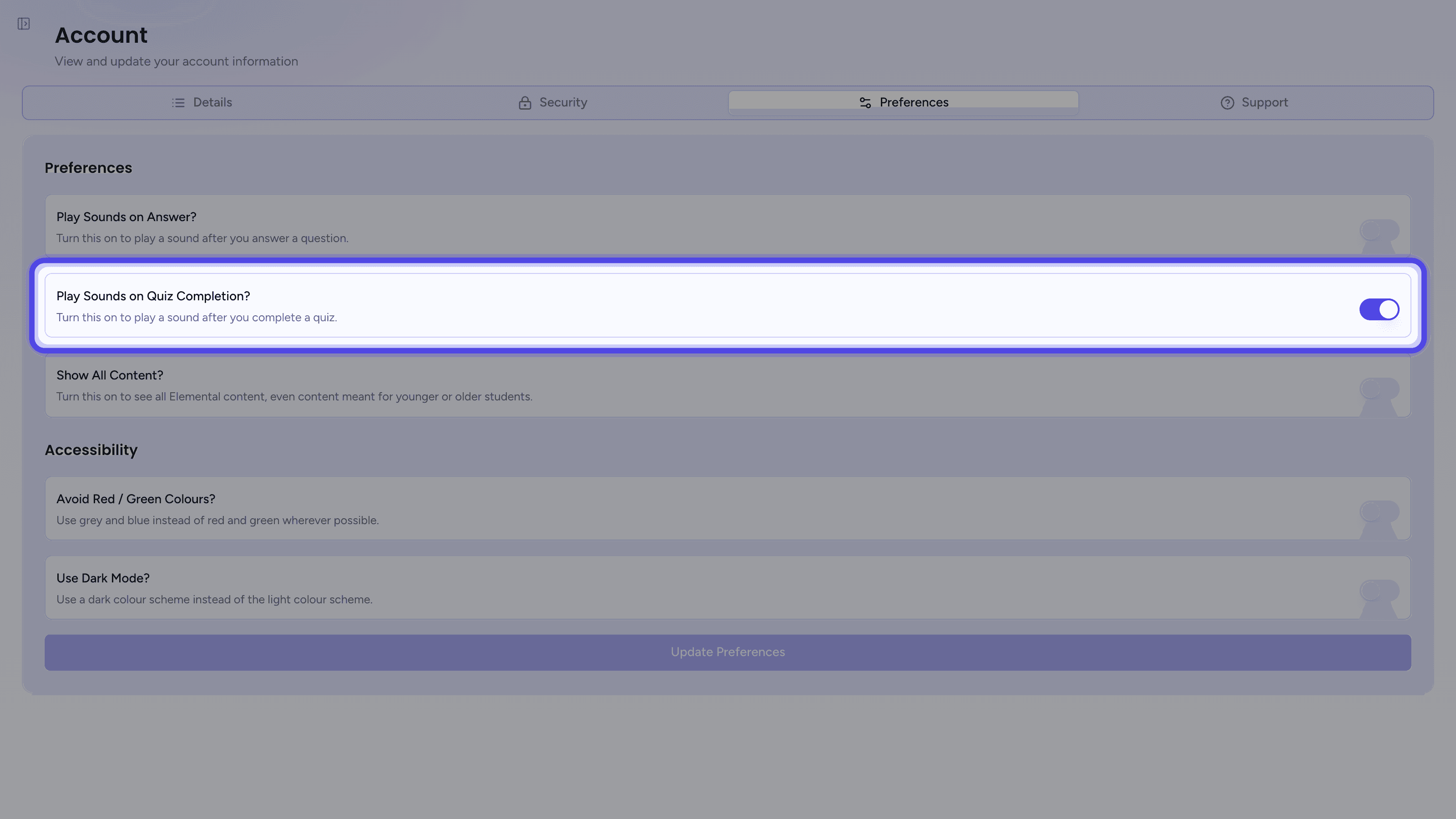
    The Preferences tab with the Play Sounds on Quiz Completion? setting highlighted
  4. 4

    Save your preferences

    Click Update Preferences, which can be clicked once you have changed a setting. A Preferences Updated message confirms that your changes have been saved.
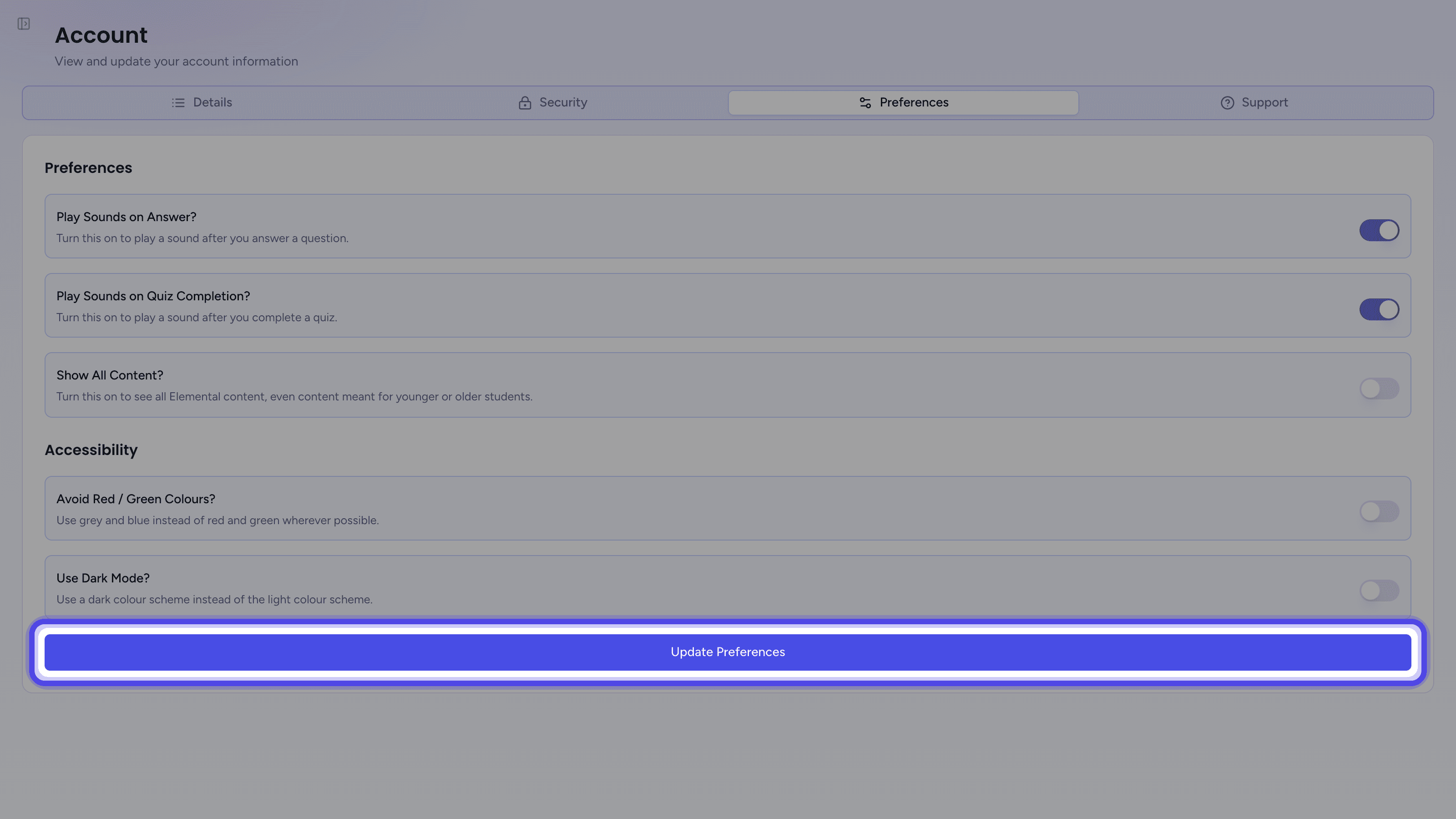
    The Preferences tab with a changed setting and the Update Preferences button highlighted

In the Mobile App

  1. 1

    Open Settings

    Tap your initials at the top of the screen to open the menu, then tap the gear icon to open Settings.

  2. 2

    Choose your sound effects

    Under Sound effects, switch On answer on or off for the sounds after each answer, and On completion on or off for the fanfare when you finish a quiz. Each change is saved straight away, and a Sound settings saved message confirms it.

Troubleshooting

I Do Not Hear Sounds After Answering

Answer sounds start switched off, so check that Play Sounds on Answer? (website) or On answer (app) is on, and that your device's volume is turned up. On the website, Summational assessments do not tell you whether each answer is right or wrong, so they never play answer sounds.

I Do Not Hear the Fanfare

The fanfare only plays when you finish a quiz with a passing score. If you passed and still hear nothing, check that Play Sounds on Quiz Completion? (website) or On completion (app) is on.

A Change Has Not Reached My Other Device

Your sound settings are saved to your account, so a change on the website also applies in the mobile app, and the other way round. It can take up to an hour to reach your other devices, or sign out and back in to pick it up straight away.

Last updated: 17 Oct 2026

audio
fanfare
mute
preferences
quiz
settings
sound effects
sounds
volume
United Learning Logo
Harris Federation Logo
DRET Logo
Future Academies Logo
Ark Pioneer Logo
Cardinal Vaughan Logo
Kingsdale Foundation School Logo
Langley Park Boys Logo
West London Free School Logo
Bartholomew School Logo
Bosworth Independent School Logo
Drayton Manor High School Logo
Haberdashers' Borough Academy Logo
Kensington Aldridge Academy Logo
Kingston Academy Logo
Oakwood Academy Logo
Oakwood School Logo
Pangbourne College Logo
Rugby Free Secondary School Logo
Rye College Logo
Weavers Academy Logo
Westminster City School Logo
Wilson's School Logo
Wolverhampton Girls' High School Logo
United Learning Logo
Harris Federation Logo
DRET Logo
Future Academies Logo
Ark Pioneer Logo
Cardinal Vaughan Logo
Kingsdale Foundation School Logo
Langley Park Boys Logo
West London Free School Logo
Bartholomew School Logo
Bosworth Independent School Logo
Drayton Manor High School Logo
Haberdashers' Borough Academy Logo
Kensington Aldridge Academy Logo
Kingston Academy Logo
Oakwood Academy Logo
Oakwood School Logo
Pangbourne College Logo
Rugby Free Secondary School Logo
Rye College Logo
Weavers Academy Logo
Westminster City School Logo
Wilson's School Logo
Wolverhampton Girls' High School Logo
United Learning Logo
Harris Federation Logo
DRET Logo
Future Academies Logo
Ark Pioneer Logo
Cardinal Vaughan Logo
Kingsdale Foundation School Logo
Langley Park Boys Logo
West London Free School Logo
Bartholomew School Logo
Bosworth Independent School Logo
Drayton Manor High School Logo
Haberdashers' Borough Academy Logo
Kensington Aldridge Academy Logo
Kingston Academy Logo
Oakwood Academy Logo
Oakwood School Logo
Pangbourne College Logo
Rugby Free Secondary School Logo
Rye College Logo
Weavers Academy Logo
Westminster City School Logo
Wilson's School Logo
Wolverhampton Girls' High School Logo
United Learning Logo
Harris Federation Logo
DRET Logo
Future Academies Logo
Ark Pioneer Logo
Cardinal Vaughan Logo
Kingsdale Foundation School Logo
Langley Park Boys Logo
West London Free School Logo
Bartholomew School Logo
Bosworth Independent School Logo
Drayton Manor High School Logo
Haberdashers' Borough Academy Logo
Kensington Aldridge Academy Logo
Kingston Academy Logo
Oakwood Academy Logo
Oakwood School Logo
Pangbourne College Logo
Rugby Free Secondary School Logo
Rye College Logo
Weavers Academy Logo
Westminster City School Logo
Wilson's School Logo
Wolverhampton Girls' High School Logo

Ready to get started?

Start your 30-day free trial today. No payment details required.