
Signing in with Google
Sign in to Elemental with your Google account on the website or in the mobile app
 Google Accounts
If your Elemental account is linked to a Google account, you can sign in with that account without a separate password. This guide shows you how to do this on the website and in the mobile app.
Not sure how you sign in? Enter your email address on the sign-in page and select Continue. We will automatically take you to the right sign-in method for your account.
Prerequisites
- An Elemental account where you sign in with Google
On the Website
- 1
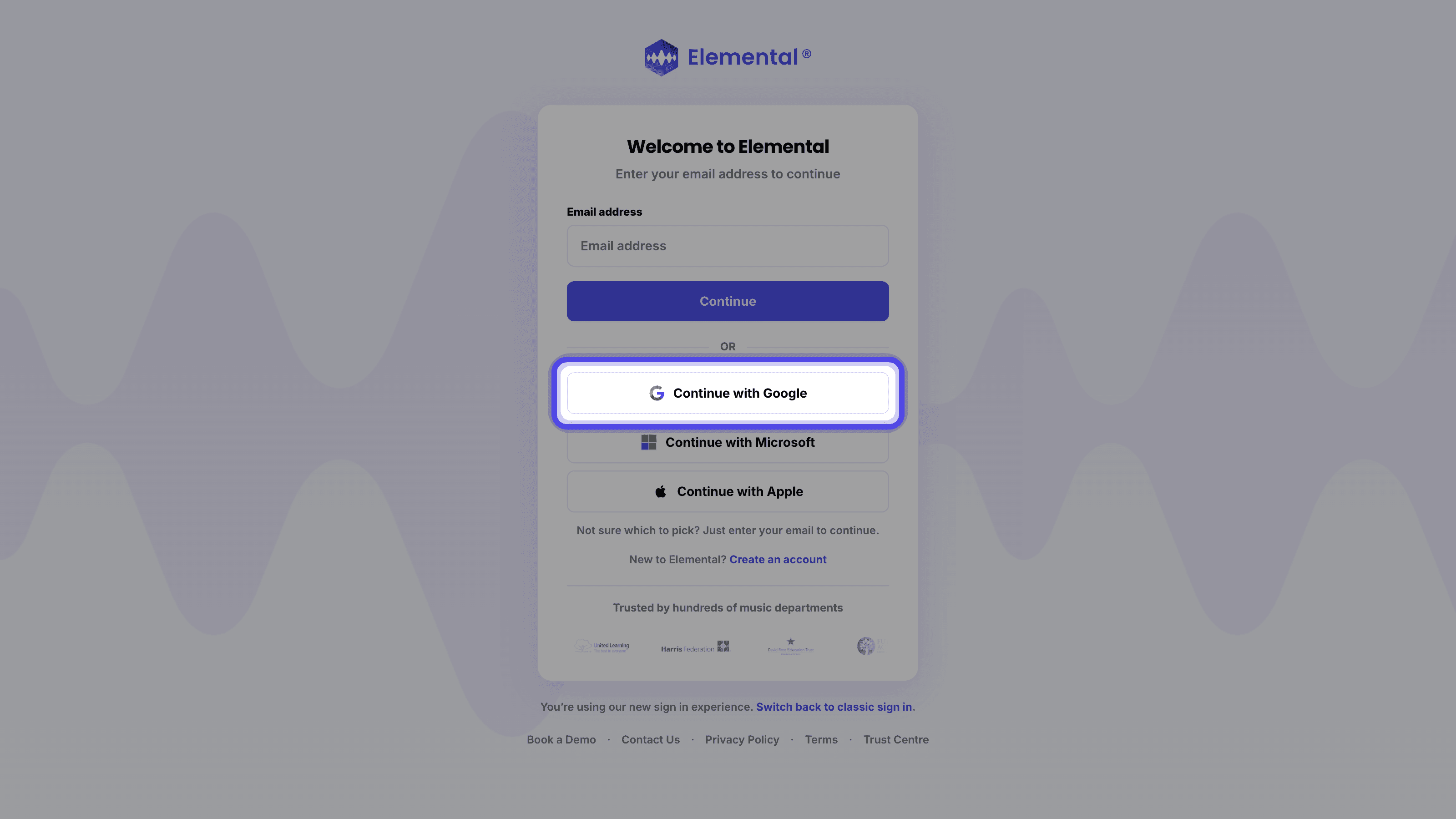
Choose Continue with Google
Open the sign-in pageGo to elementalmusic.app and select Sign In at the top of the page, then select Continue with Google.
- 2
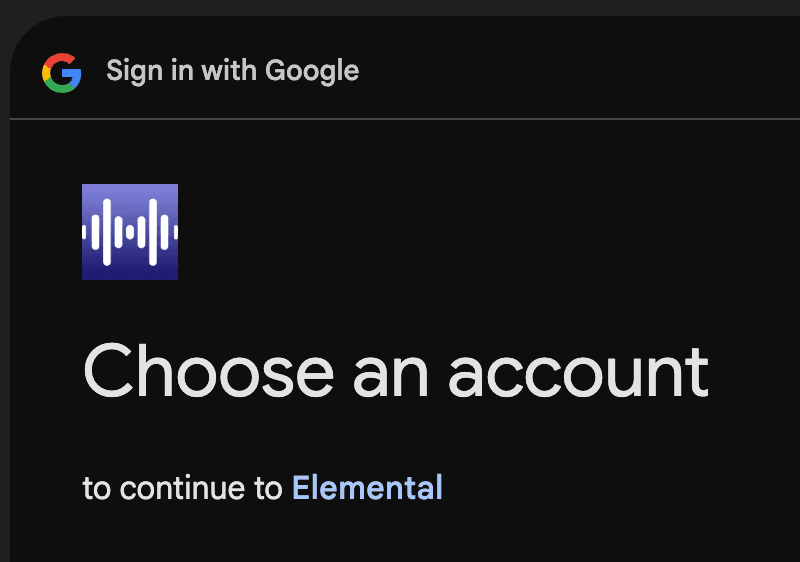
Confirm Your Google Account
Google will ask you to choose an account. Pick the account your Elemental account is linked to (your school Google account if your school set Elemental up for you). Once you confirm, you will be brought straight back into Elemental, signed in.
In the Mobile App
- 1
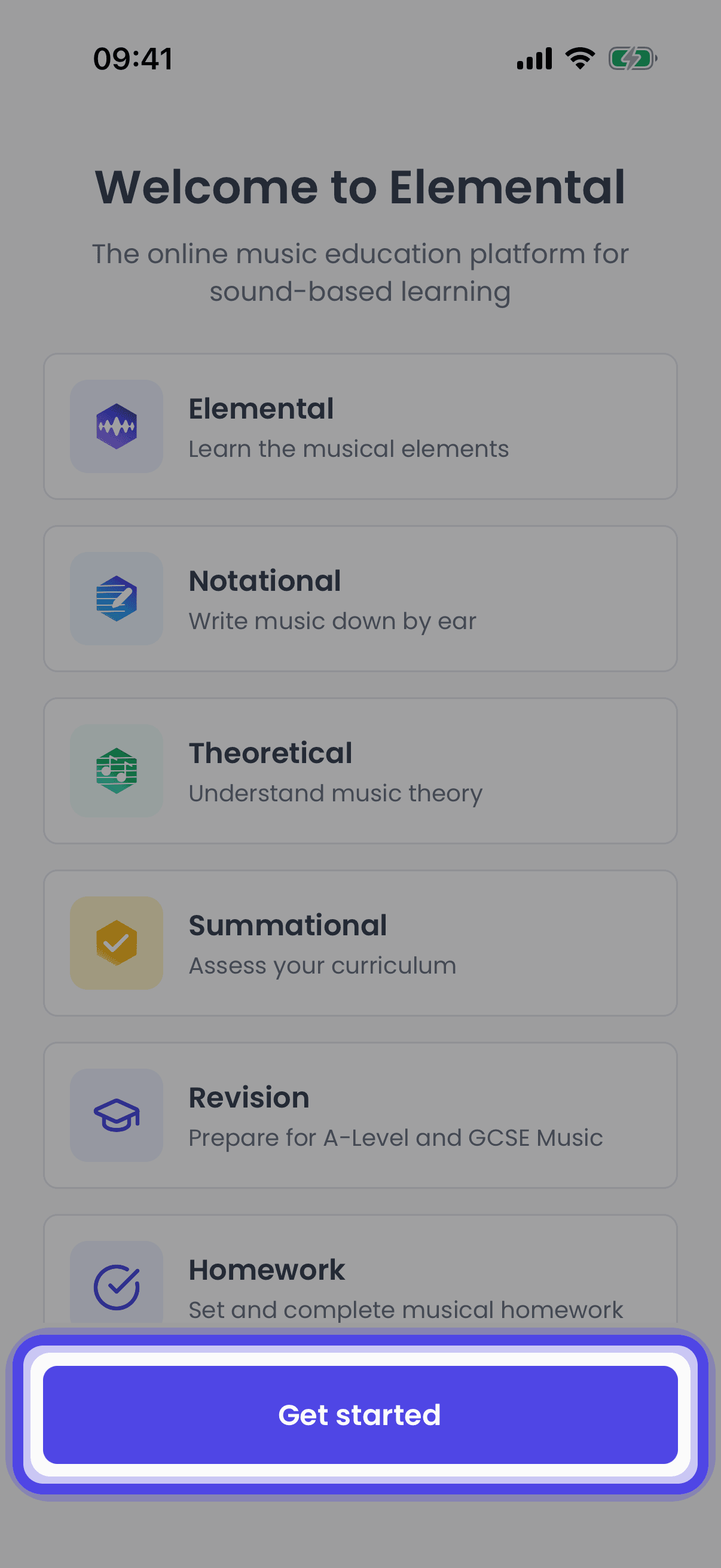
Open the App
Open the Elemental app. If you see the welcome screen, tap Get started.
- 2
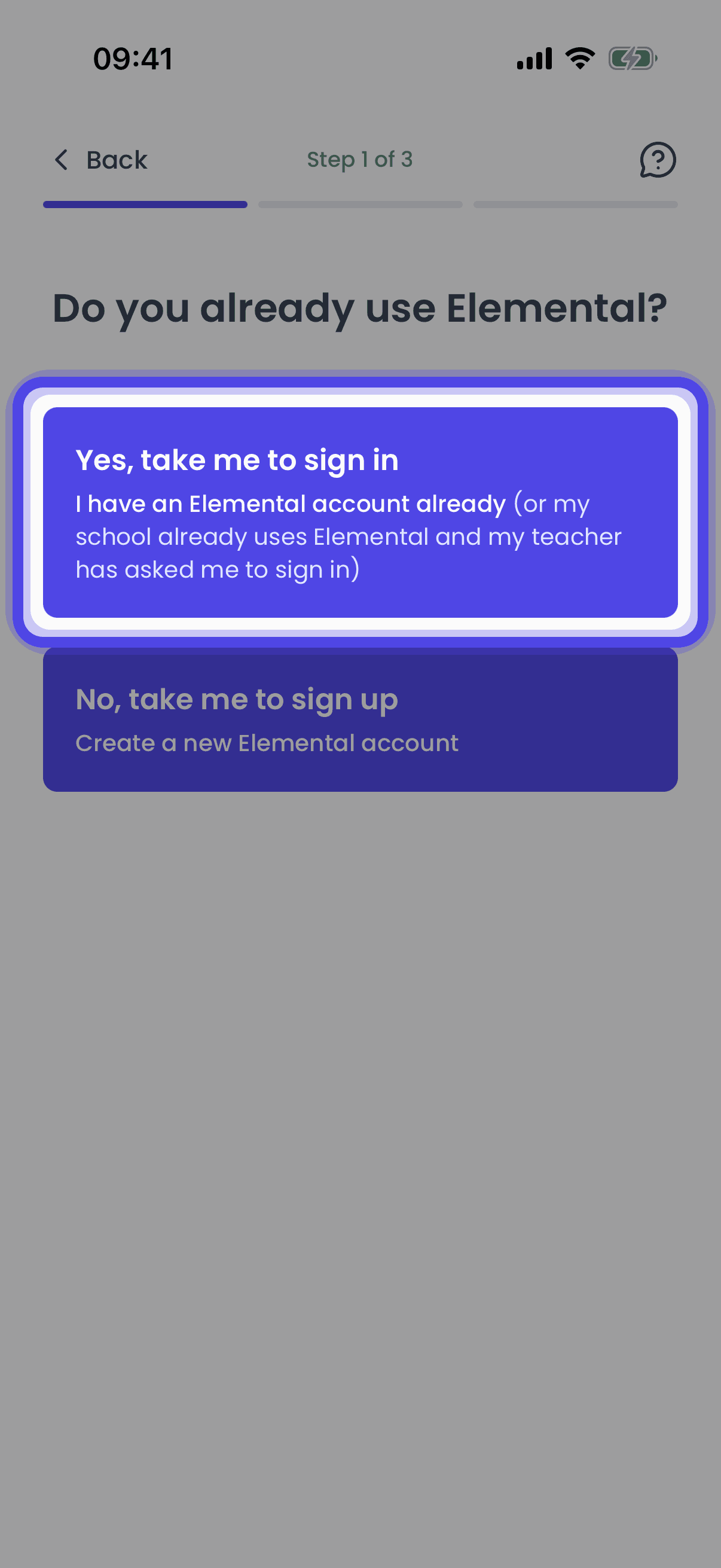
Go to Sign In
Choose Yes, take me to sign in.
- 3
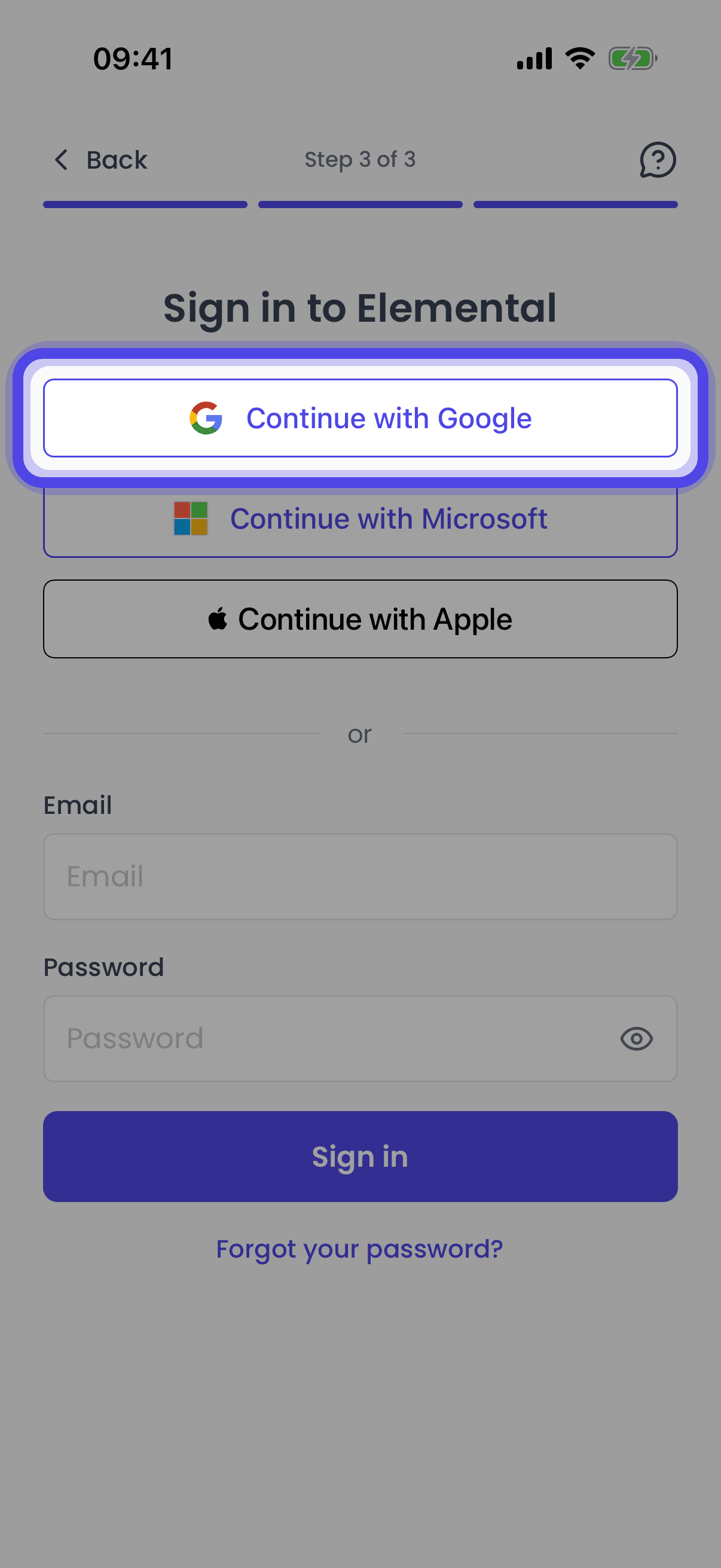
Tap Continue with Google
Tap Continue with Google and confirm your account in the window that appears. You will be returned to the app, signed in.
Related Articles
Sign in to Elemental with your email address and password on the website or in the mobile app
Signing in with MicrosoftSign in to Elemental with your Microsoft account on the website or in the mobile app
Creating a Google AccountCreate an Elemental account using your Google sign-in on the website or in the mobile app
Last updated: 12 Sep 2026