























Inviting Google Classroom Students
Add your Google Classroom students to Elemental and email them an invitation to sign in
 Google Accounts
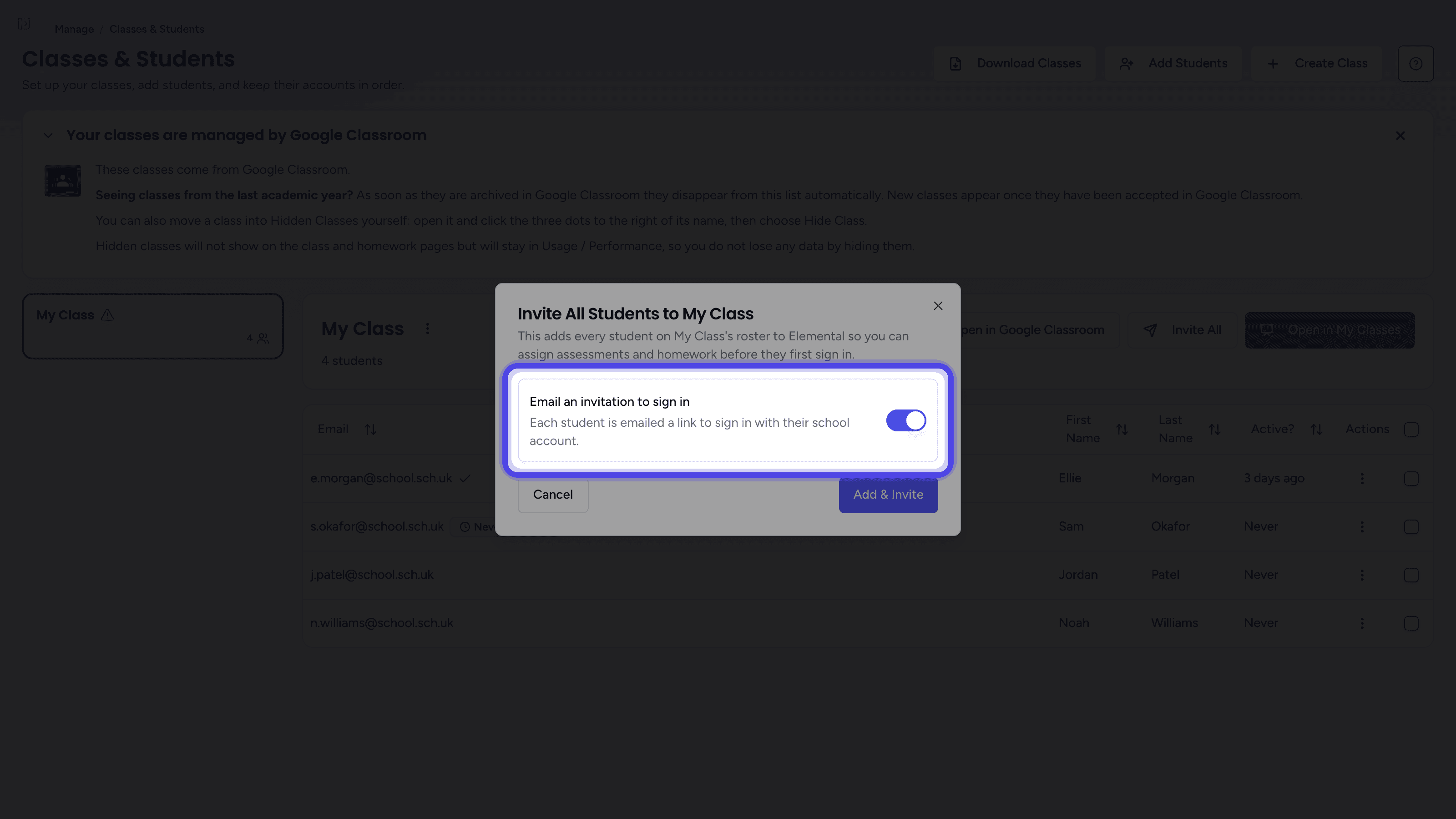
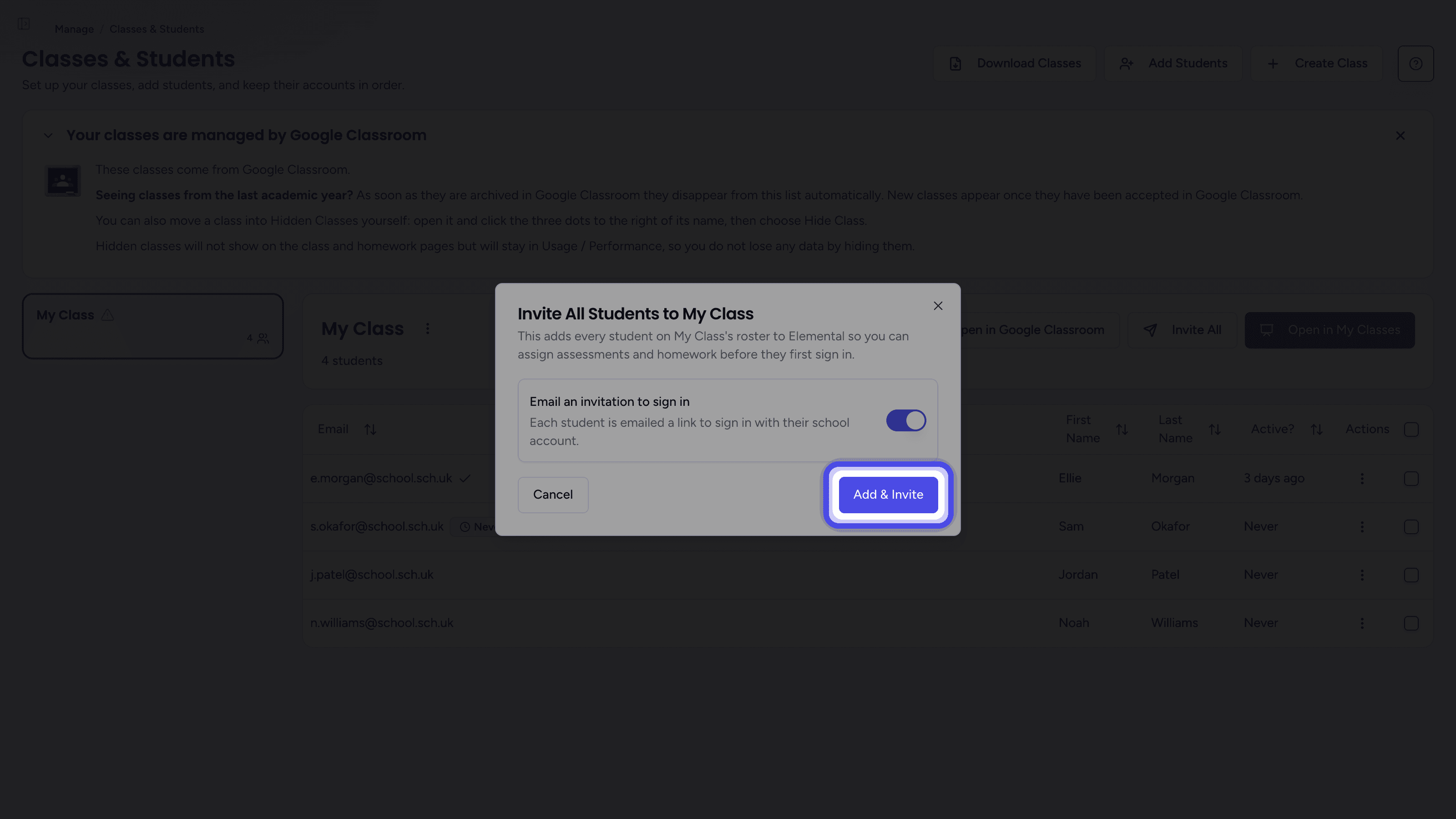
If your school's classes come from Google Classroom, you can add your students to Elemental before they first sign in, so you can assign assessments and homework to them straight away. You can add a whole class in one go or just the students you choose, and Elemental can email each student an invitation to sign in.
Prerequisites
- A teacher or school admin account
- Classes that come from Google Classroom
Inviting a Whole Class
- 1
Open the class
Open Classes & StudentsChoose Manage, then Classes & Students in the sidebar, and click the class in the list on the left.
- 2
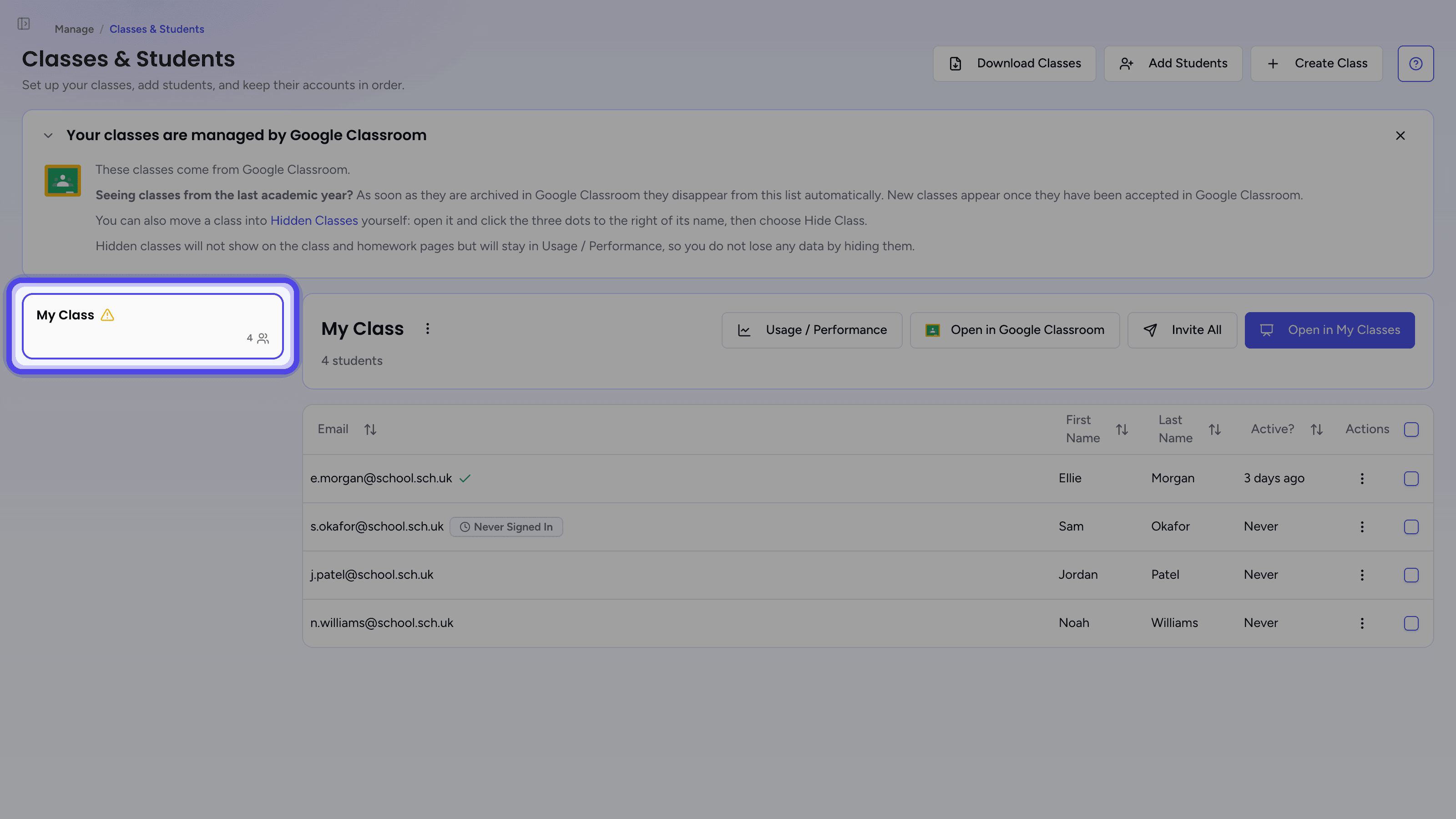
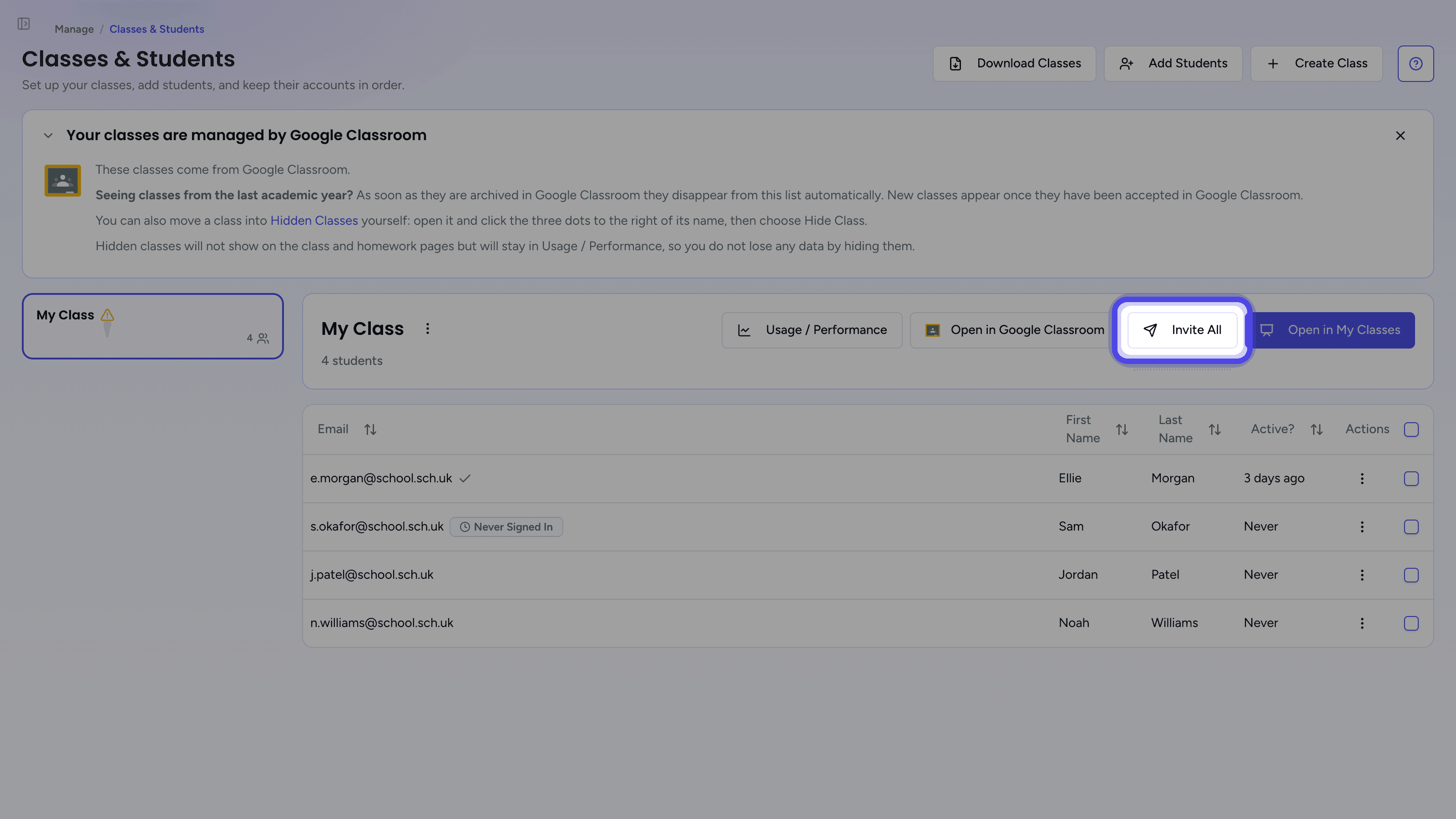
Click Invite All
Click Invite All at the top right of the class panel.
- 3
Inviting Individual Students
- 1
Open the class
Open Classes & StudentsChoose Manage, then Classes & Students in the sidebar, and click the class in the list on the left.
- 2
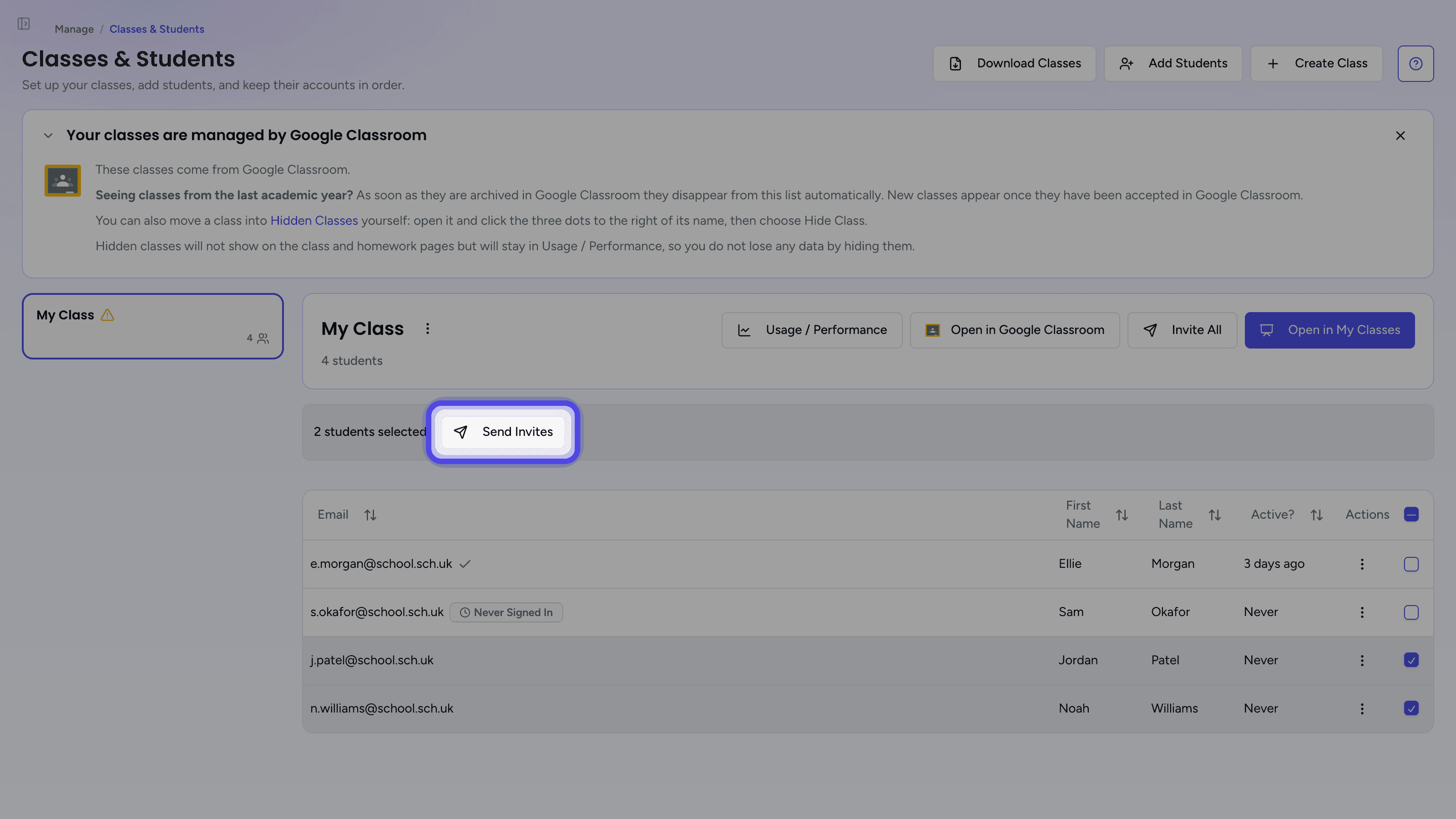
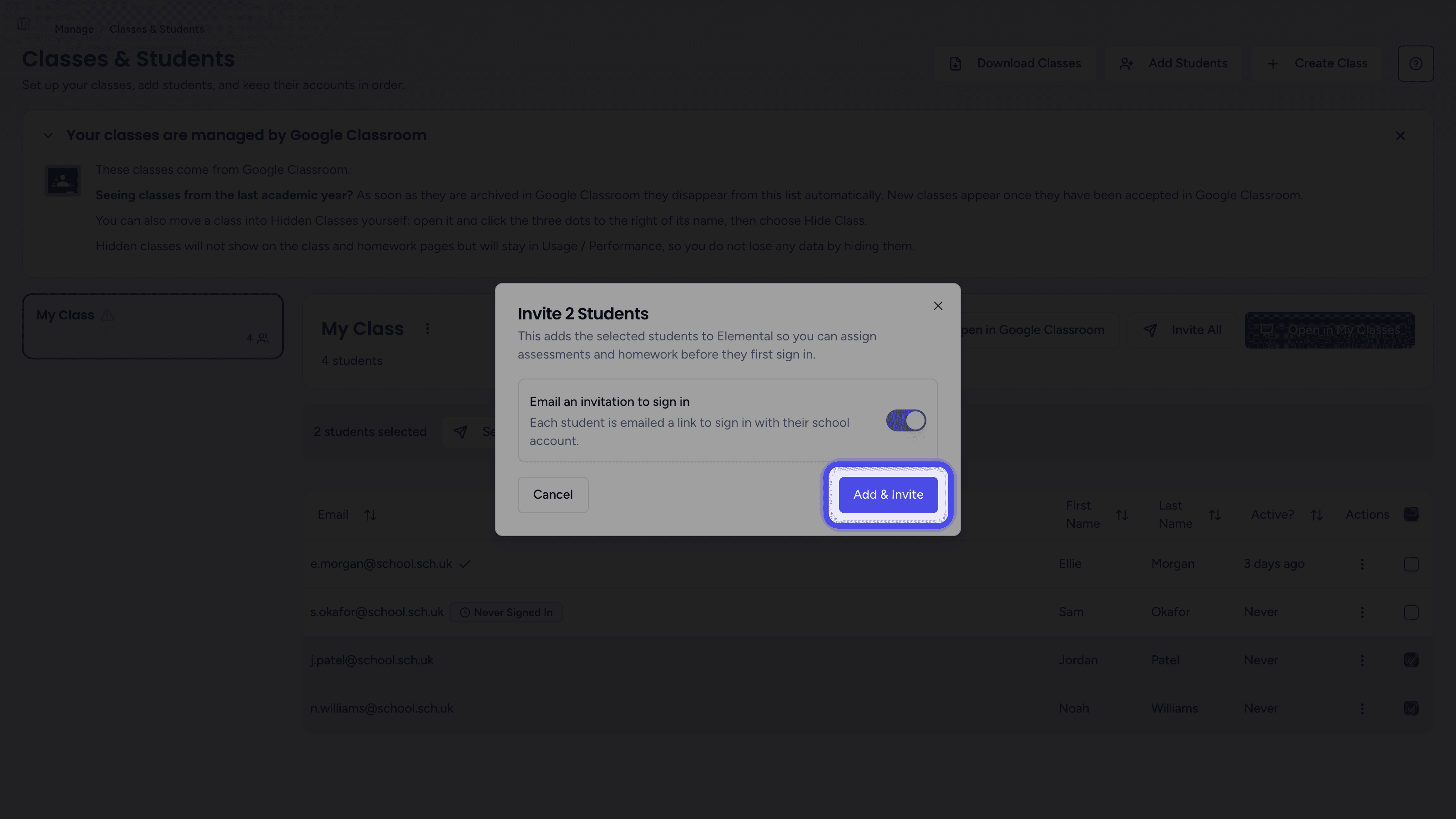
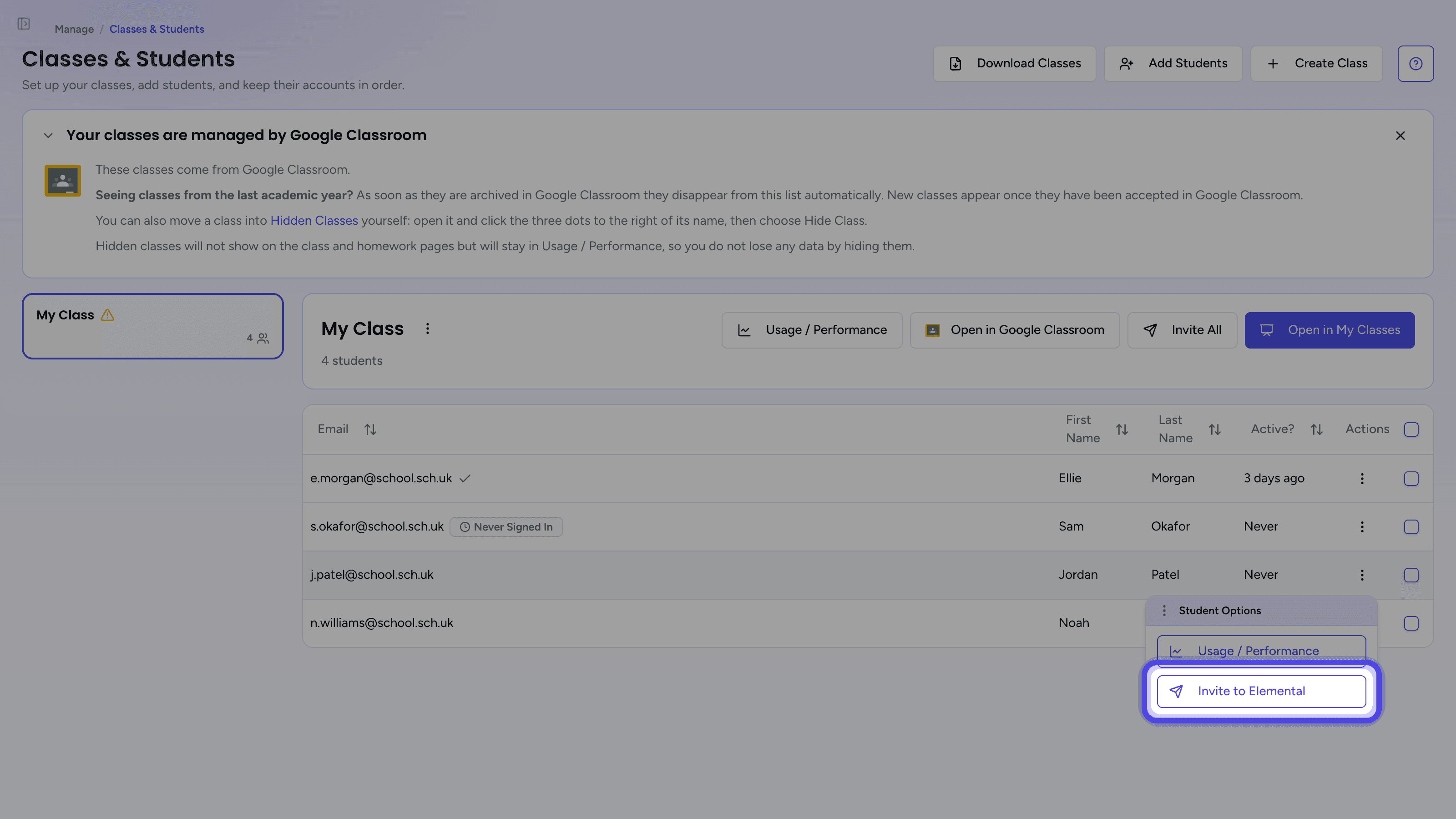
Invite one student
Click the three-dot Student Options button on the student's row and choose Invite to Elemental.
- 3
Resending Invitations
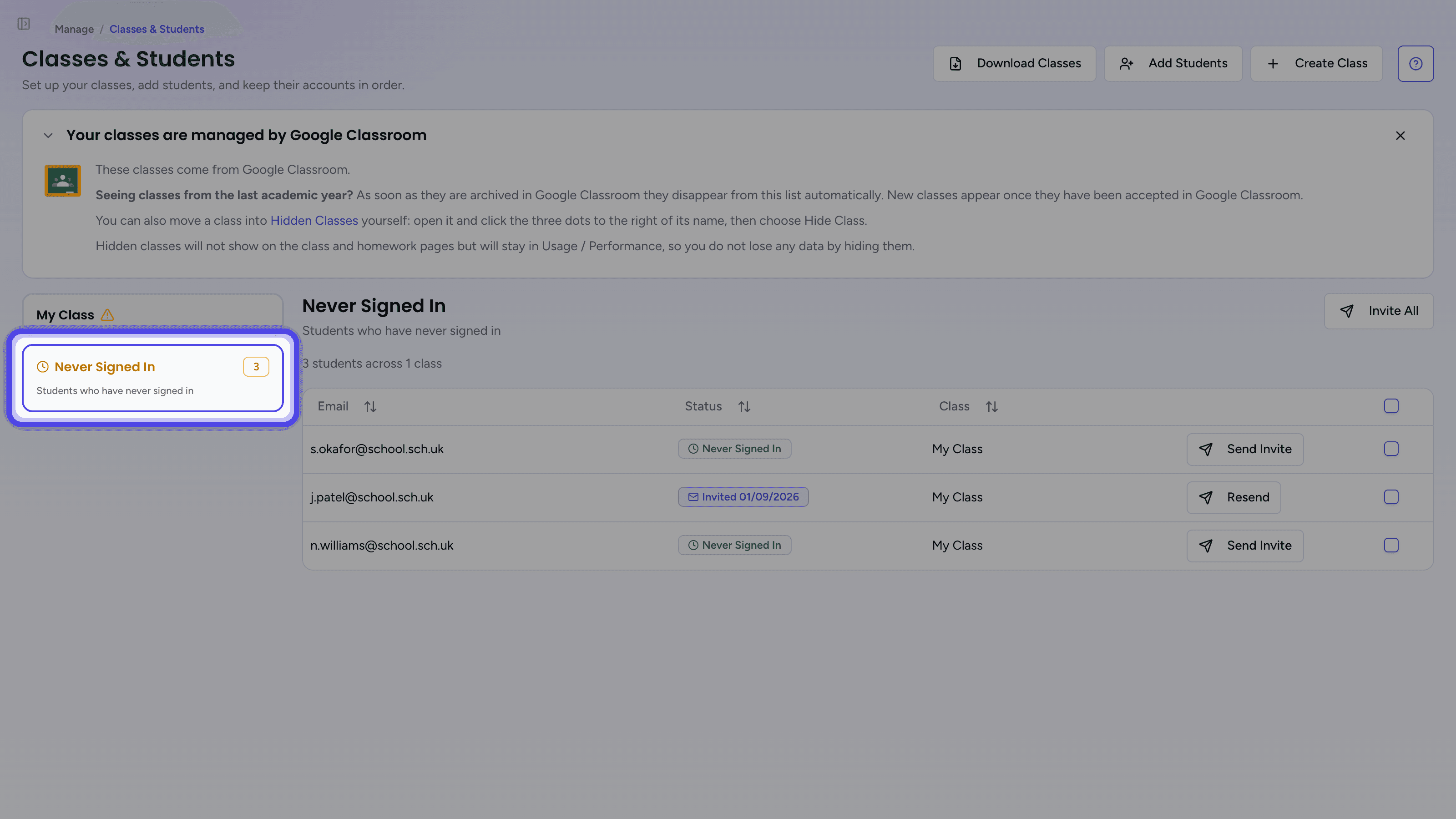
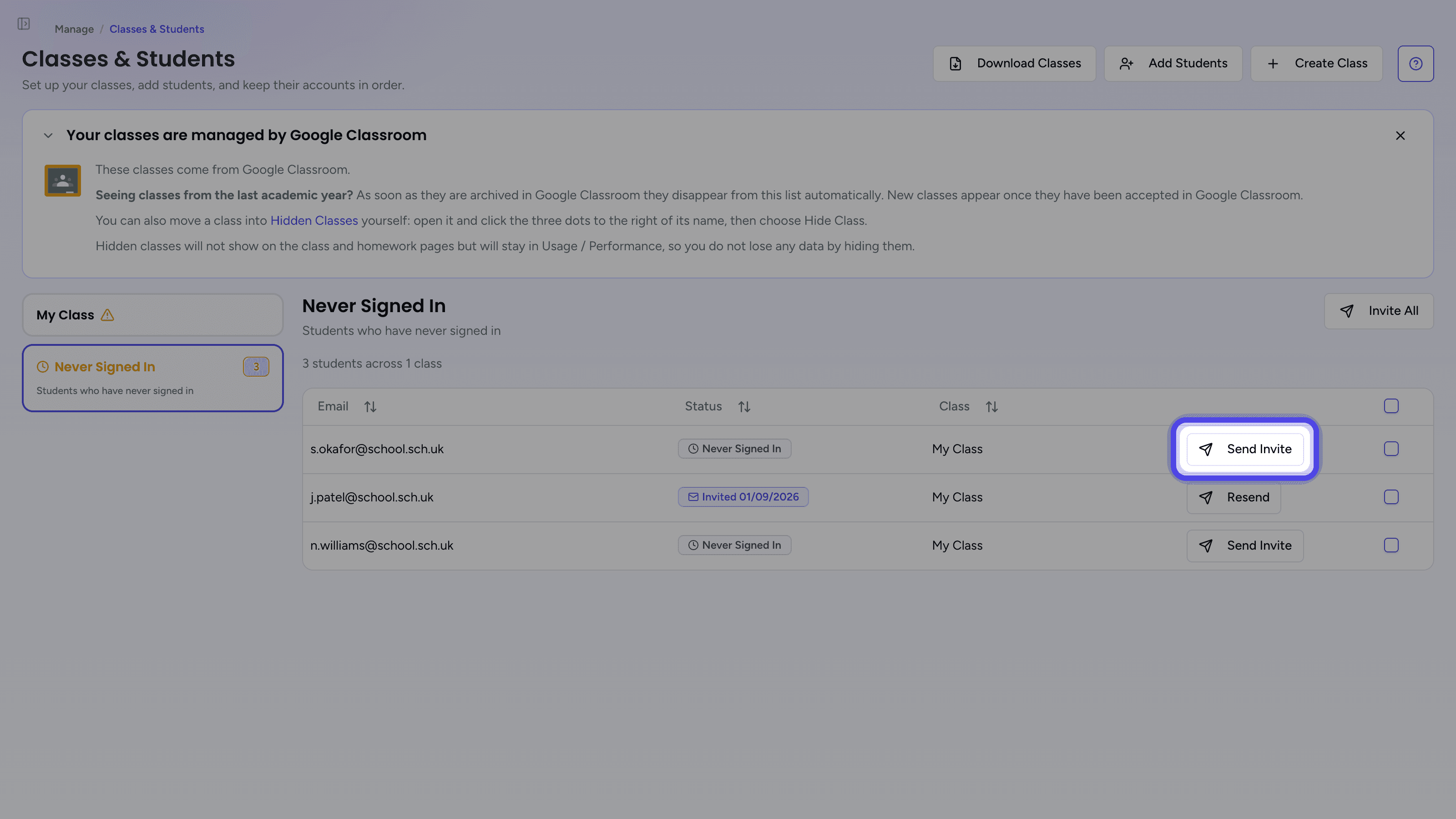
Students who have been added to Elemental but have not signed in yet show a Never Signed In badge next to their email address. As soon as your school has at least one, a Never Signed In card appears in the class list, with a count of the students it holds. Open it to see every student at your school who has not signed in, with their class.
The Status column shows one of:
| Status | What it means |
|---|---|
| Never Signed In | The student has been added to Elemental but has not been emailed an invitation. |
| Invited | An invitation email was sent on the date shown. The student is linked to your school automatically when they sign in. |
- 1
Open the Never Signed In list
Open Never Signed In
What Students Receive
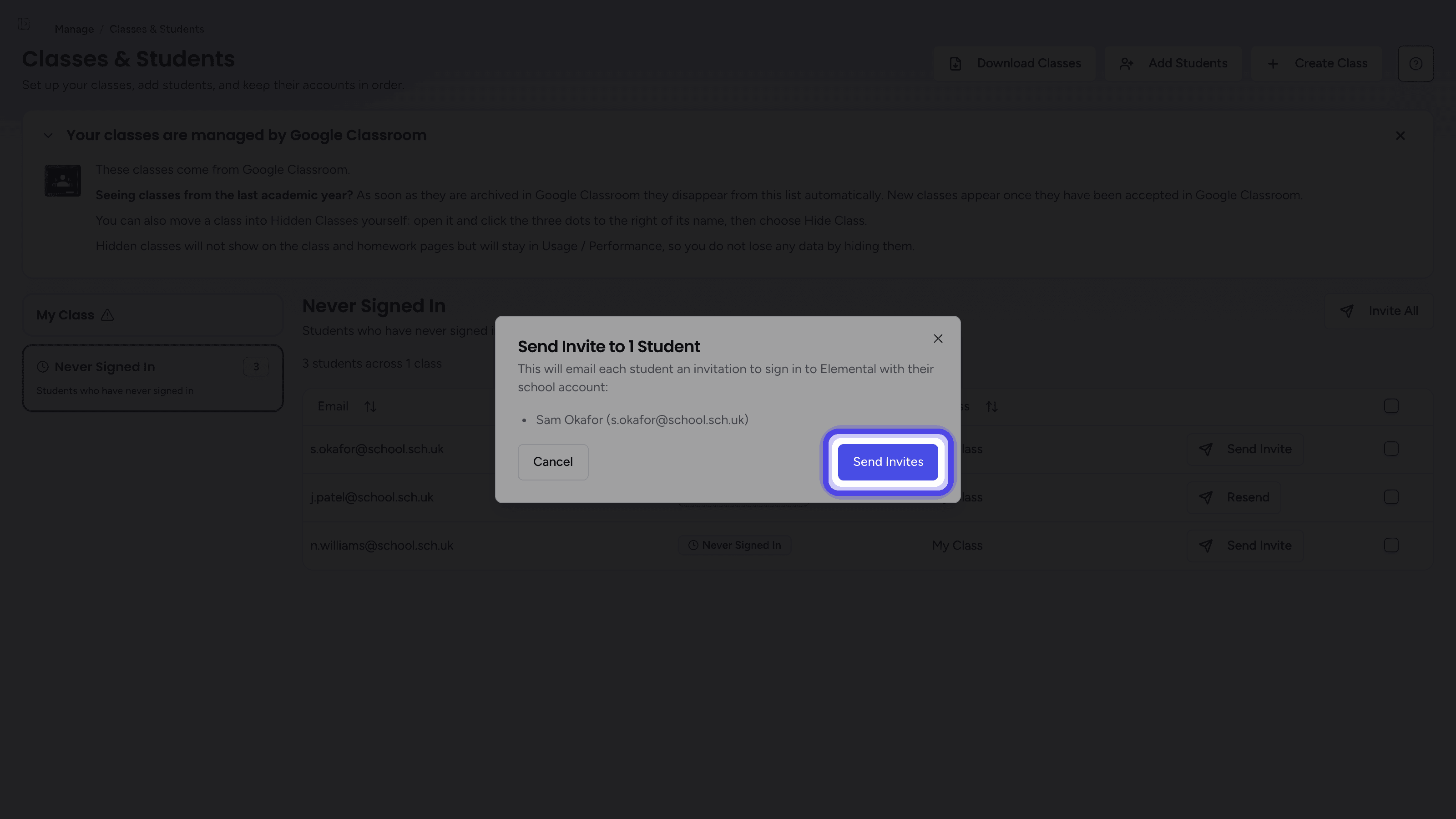
Each student is emailed a message titled Welcome to Elemental, telling them their teacher has added them to Elemental for your school. The Sign in with Google button takes them to sign in with their school Google account, and they are linked to their classes automatically.
Troubleshooting
No Students Were Added
Elemental adds students using their email addresses from Google Classroom. If the students table shows Enable email addresses or Email address unavailable instead of email addresses, Elemental cannot read them. A school admin can turn on Collect email addresses from Google? on the School Preferences page (if it is already on, try turning it off and on again).
Elemental also only adds students whose email addresses match your school's email domain. If the addresses are there but no students were added, contact us so we can add the missing domain.
Some Students Were Not Added
A student whose email address is already registered at another school is skipped. Contact us if a student has moved to your school and cannot be added.
I Cannot See Invite to Elemental in the Menu
Invite to Elemental only appears for students who are not in Elemental yet and have an email address. A student who has already been added shows a Never Signed In badge instead, and you can email them again from the Never Signed In list.
A Student Has Not Received Their Invitation
Ask the student to check their junk or spam folder, then send the invitation again from the Never Signed In list. If invitations still do not arrive, your school may be filtering emails from outside the school, so ask your IT team to allow emails from Elemental. Students can also sign in at any time without the email by choosing Sign in with Google on the sign-in page.
Related Articles
Last updated: 14 Sep 2026
Have a question?