
Resetting Student Passwords
Reset the password for one student or several students at once, then copy, download or print the new passwords
If your school's students sign in with an email address and a password, you can reset their passwords for them from the Classes & Students page. You can reset one student's password or several at once, and Elemental shows you the new passwords so you can share them with your students.
Students who can receive emails at their address can also reset their own password from the sign-in page. See Resetting a Forgotten Password.
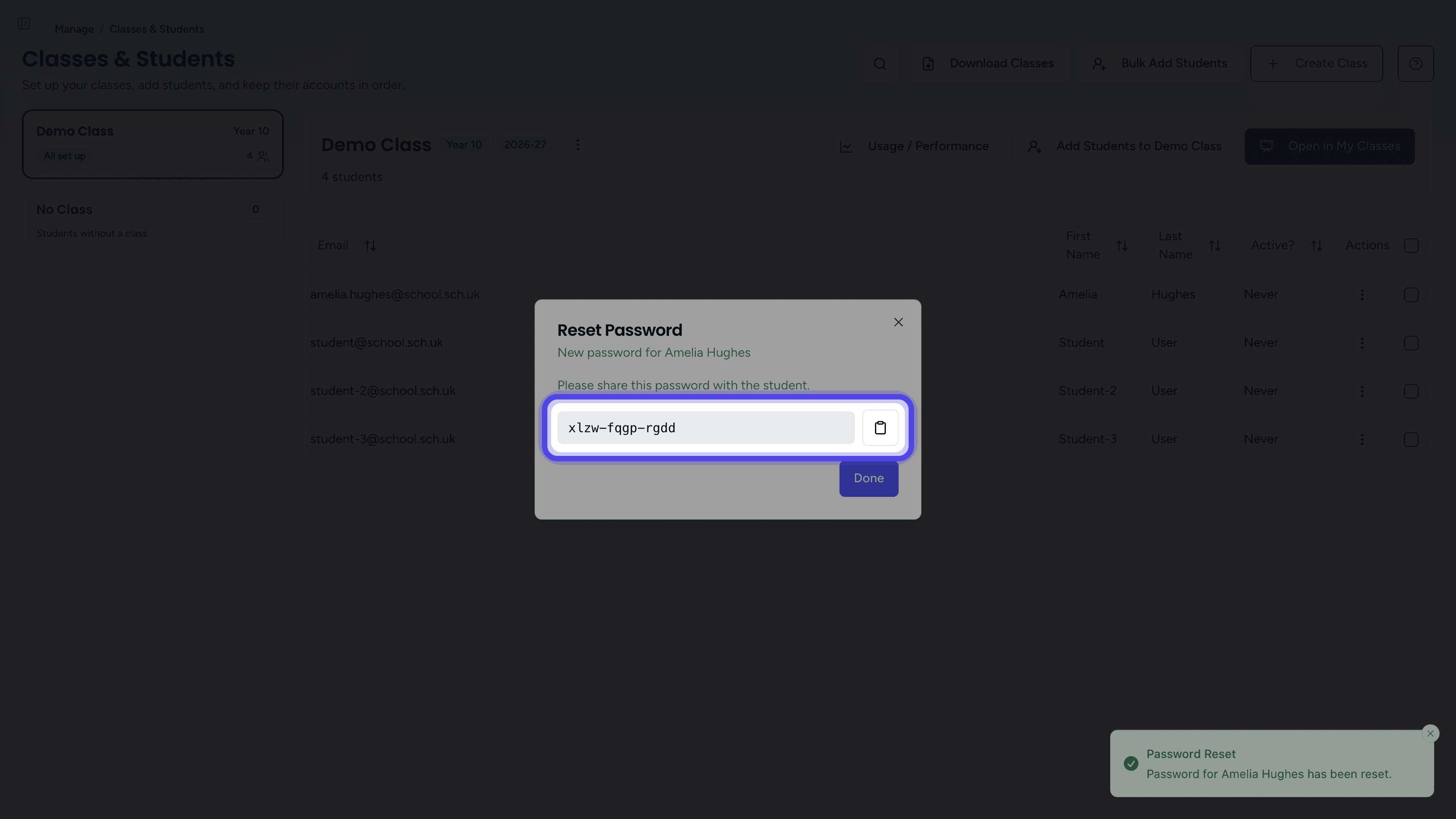
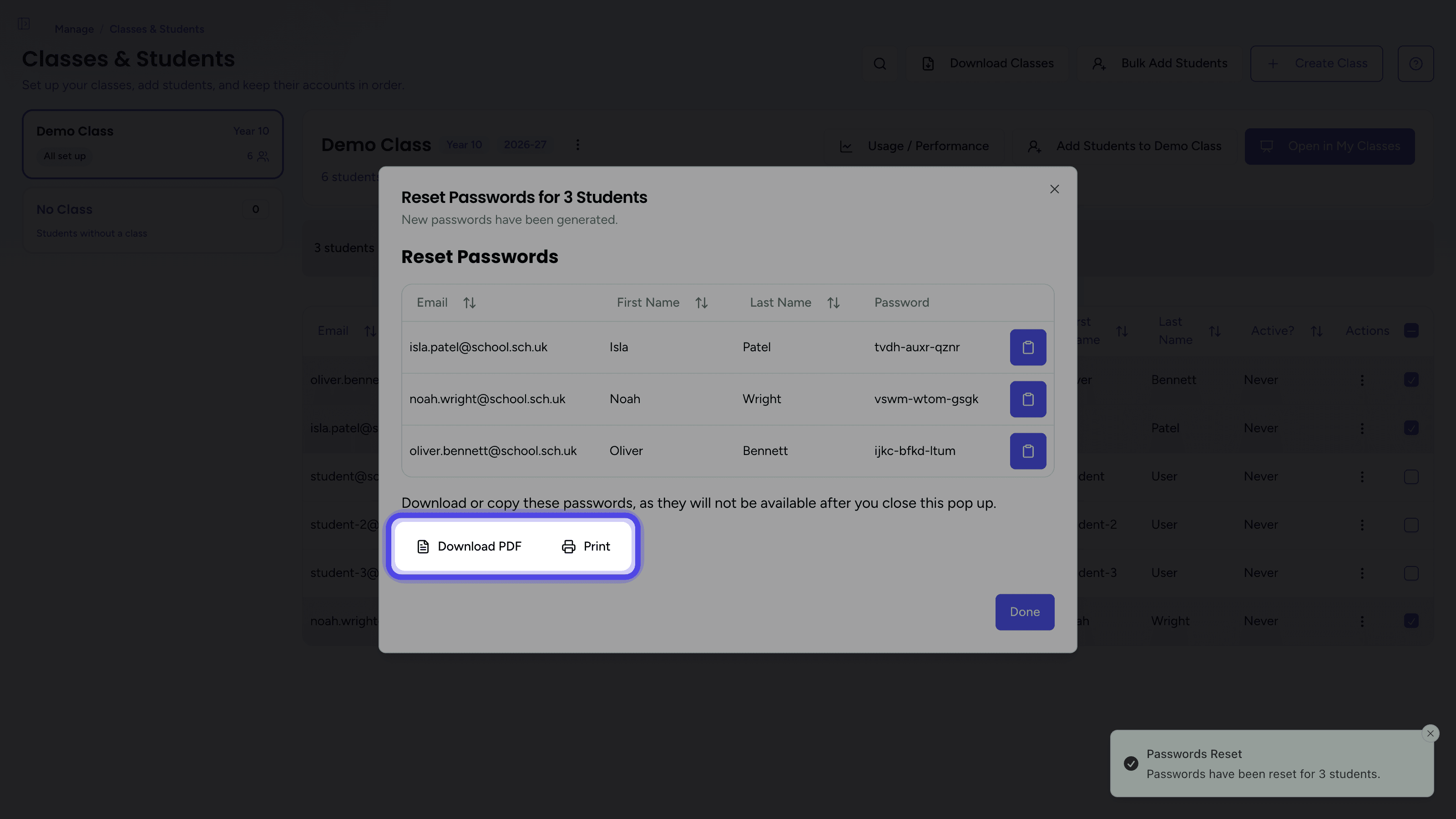
New passwords are only shown once, in the dialog that confirms the reset. Copy, download or print them before you click Done, as you cannot see them again afterwards.
Prerequisites
- A teacher or school admin account
- Students who sign in with an email address and a password
Resetting One Student's Password
- 1
Open the class
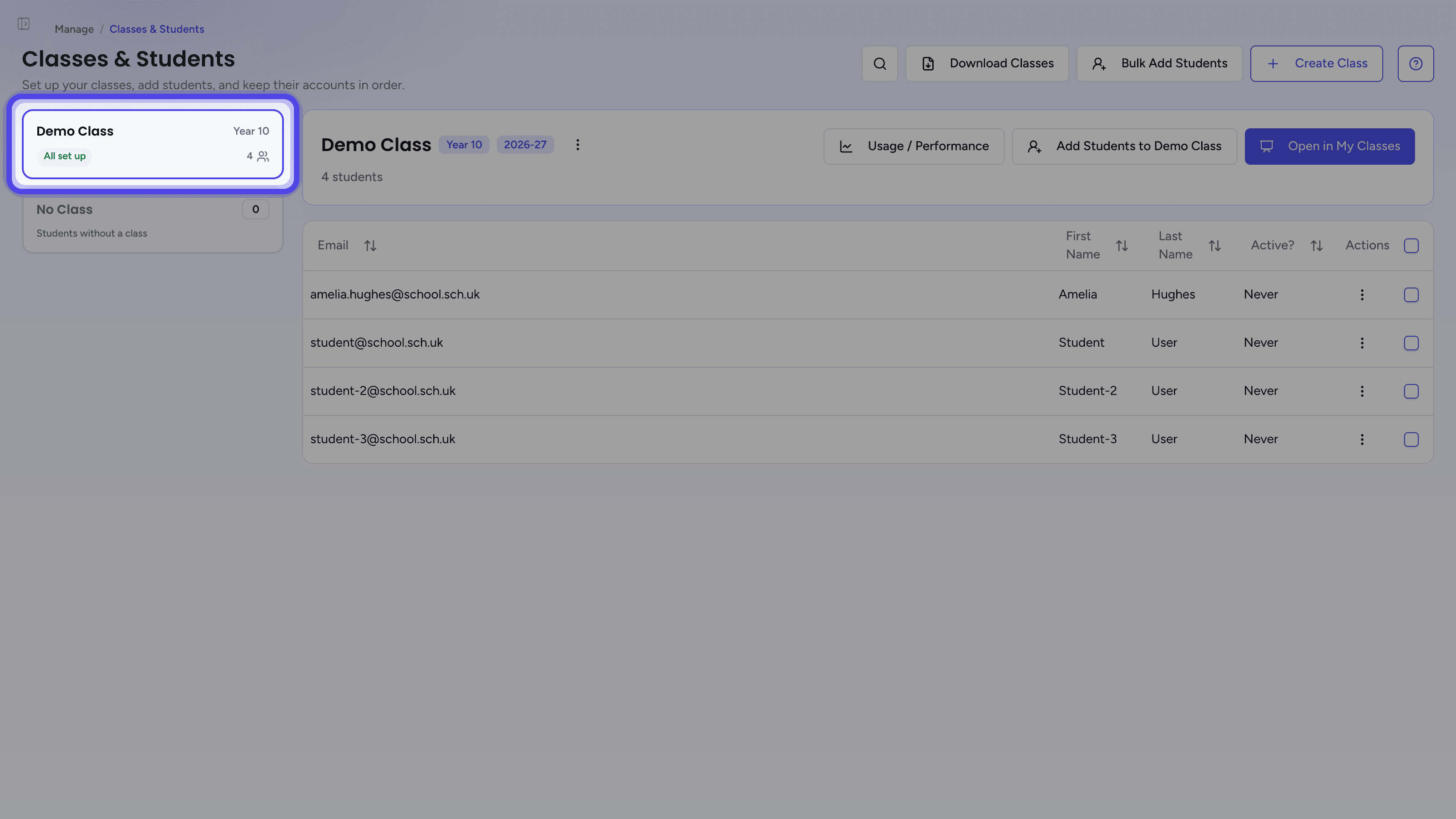
Open Classes & StudentsChoose Manage, then Classes & Students in the sidebar, and click the student's class in the list on the left.
- 2
Choose Reset Password
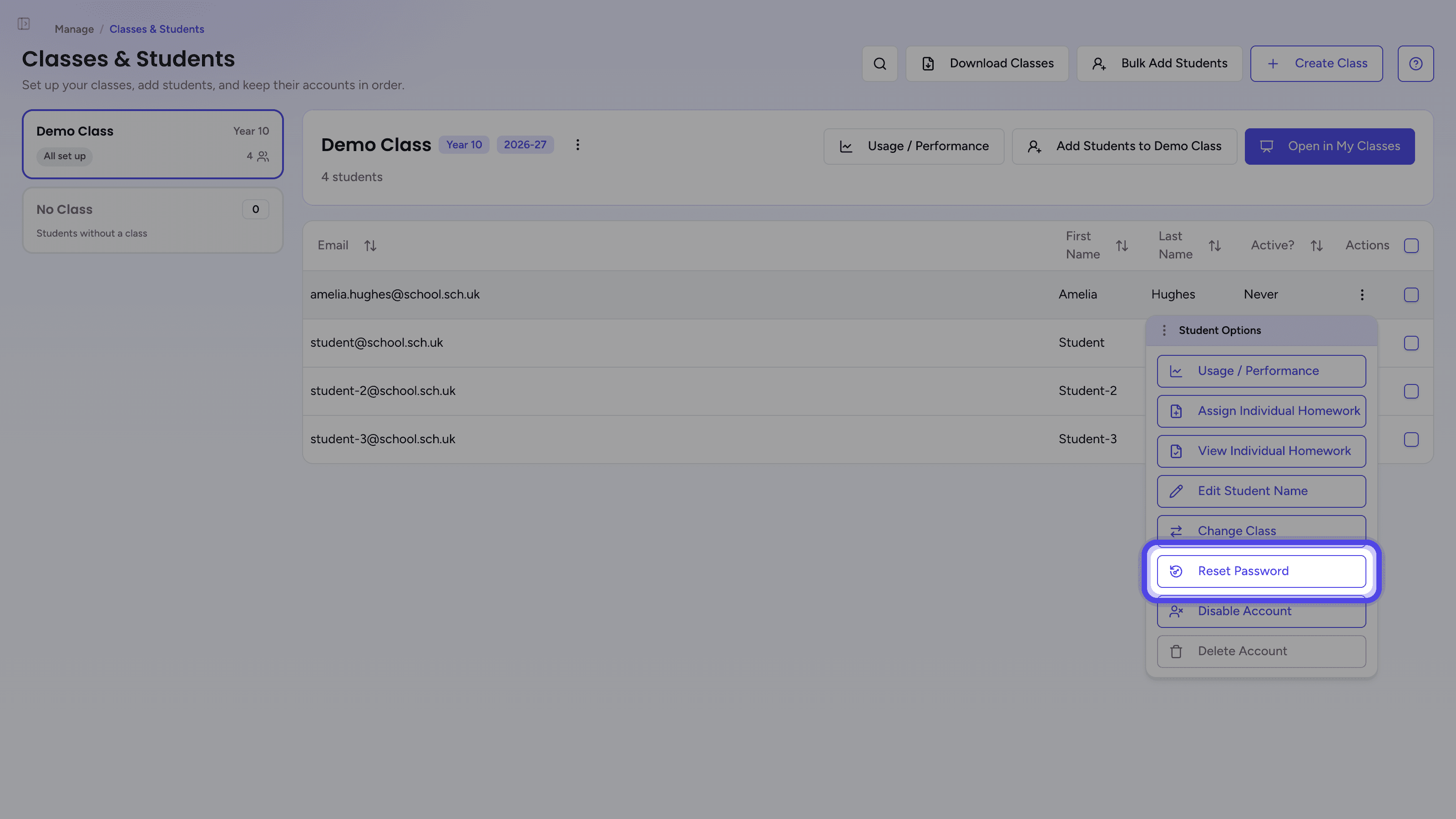
Click the three-dot Student Options button on the student's row and choose Reset Password.
- 3
Choose the type of password
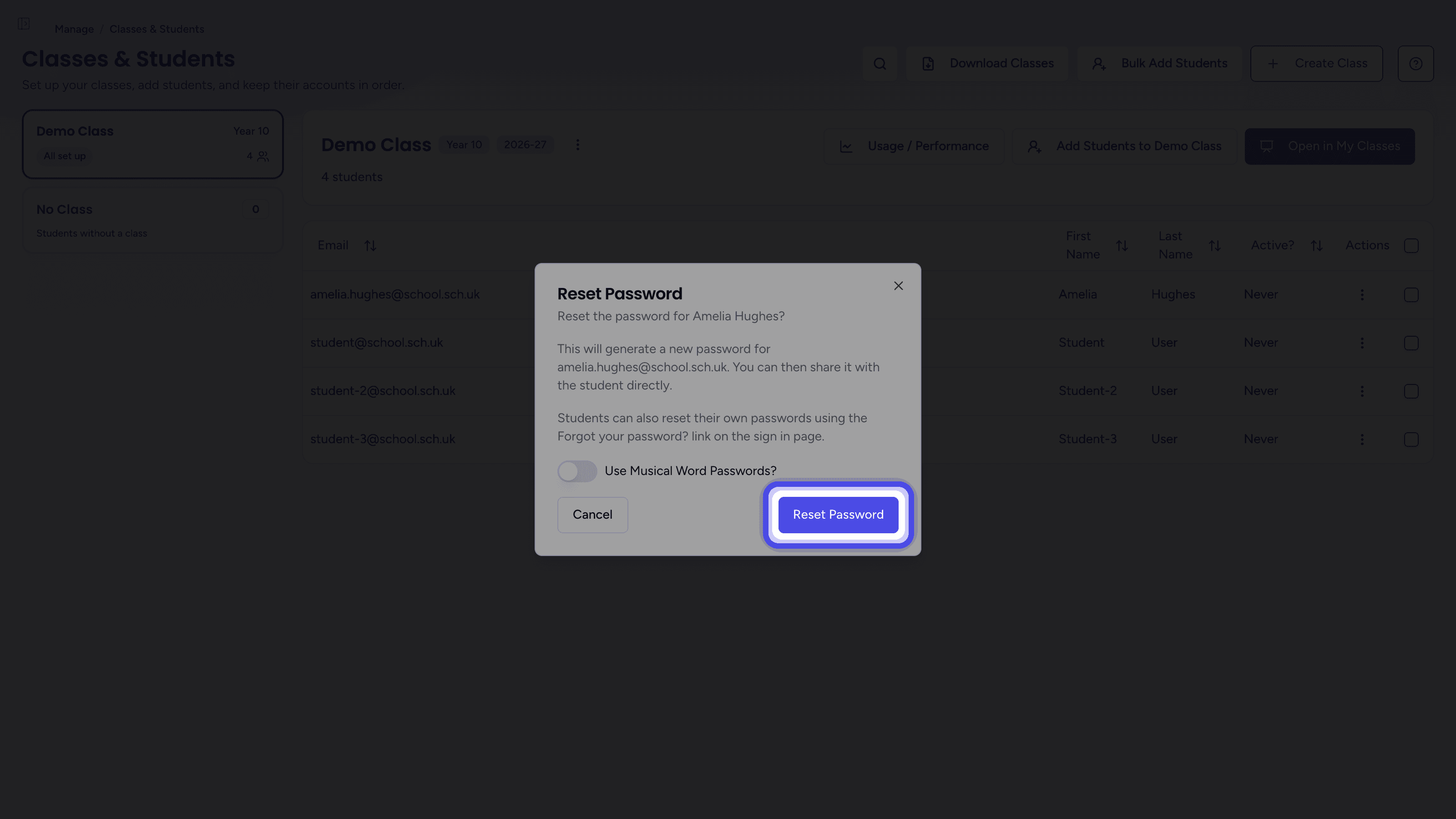
The Reset Password dialog shows the student's name and email address. New passwords are made of random letters, unless you switch on Use Musical Word Passwords? to use three musical words instead (such as cello-chorus-forte). Musical word passwords are easier to remember but a little less secure. Click Reset Password.
- 4
Share the new password
A Password Reset message confirms the change, and the dialog shows the new password. Click the copy button next to it to copy it, share it with the student, then click Done.
Resetting Passwords for Several Students
- 1
Open the class
Open Classes & StudentsChoose Manage, then Classes & Students in the sidebar, and click the student's class in the list on the left.
- 2
Select the students
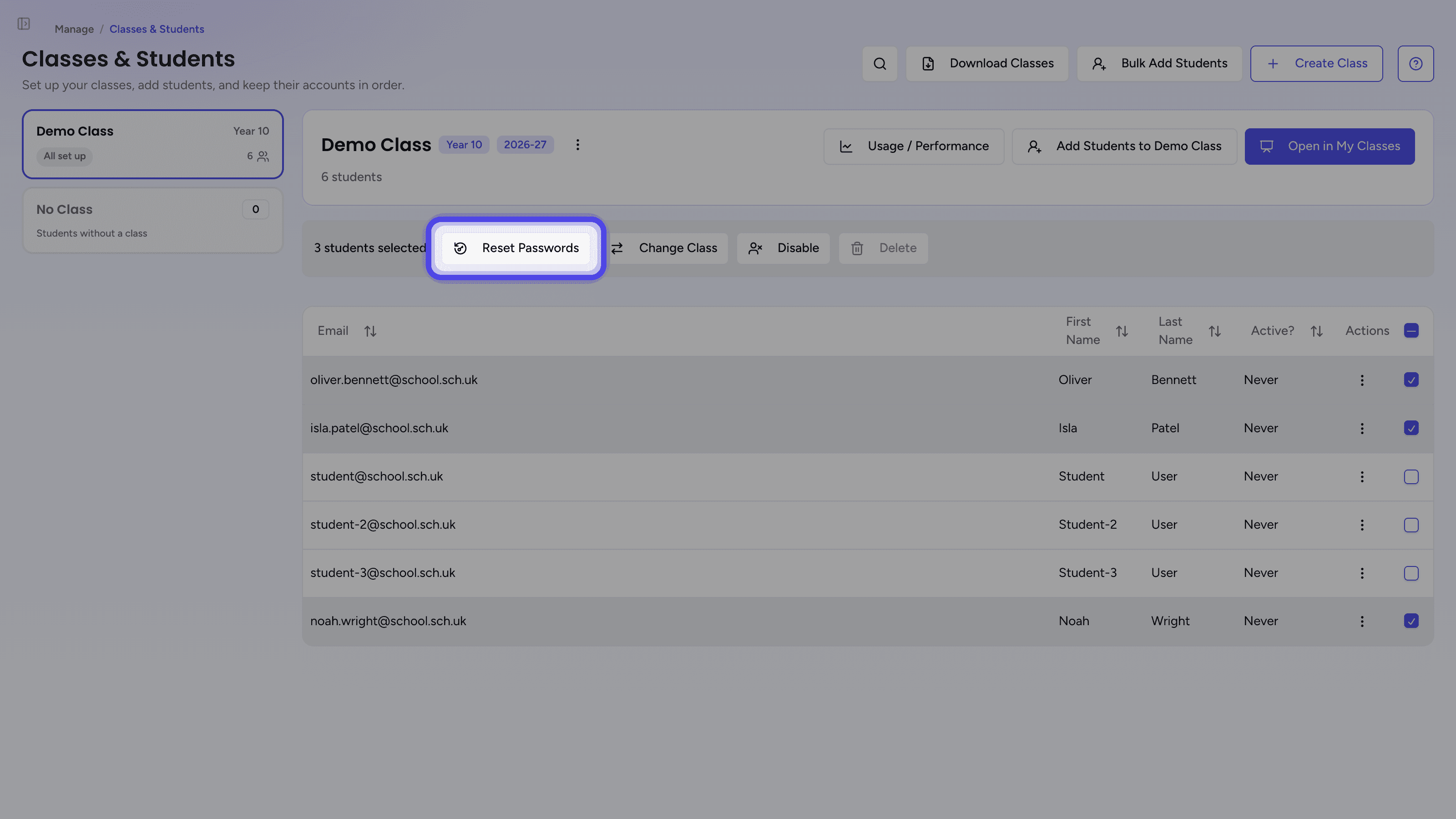
Tick the box on each student's row, or tick the box in the header row of the table to select the whole class. Then click Reset Passwords in the bar that appears above the table.
- 3
Confirm
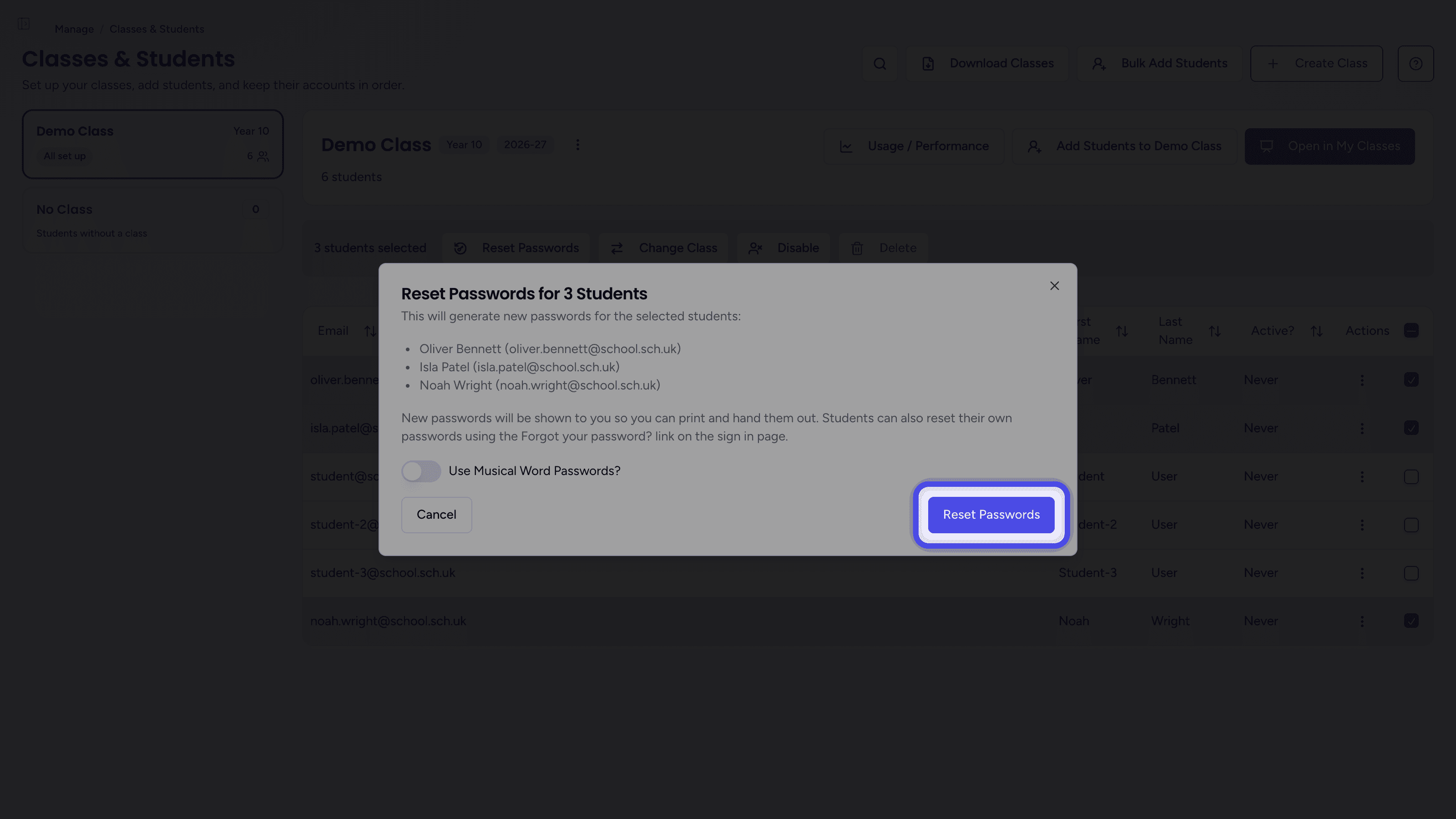
The Reset Passwords for dialog opens, followed by the number of students, and lists each student you selected. Switch on Use Musical Word Passwords? if you want musical word passwords, then click Reset Passwords.
- 4
Download or print the passwords
A Passwords Reset message confirms how many passwords were reset, and the dialog shows a Reset Passwords table with each student's email address, name and new password. Click Download PDF to save the list as a PDF file, or Print to print it, so you can hand the passwords out. The list is stamped with the time and date it was downloaded or printed. To copy a single password, click the copy button on its row. Click Done when you have saved the passwords.
After a Reset
The new password works straight away and replaces the student's old password. Students sign in with their email address and the new password (see Signing in with Email / Password).
Students are not asked to change the new password. Once signed in, they can choose their own password from their Account page, under Change Password on the Security tab.
Troubleshooting
I Cannot See Reset Password
Reset Password and Reset Passwords only appear at schools whose students sign in with an email address and a password. If your students sign in with Google or Microsoft, their passwords are managed by that provider, so ask your school's IT team to reset them.
Some Passwords Were Not Reset
If a Some Password Resets Failed message appears, the table only lists the students whose passwords were reset. Download or print that list, then select the other students and reset their passwords again.
I Closed the Dialog Before Saving the Passwords
New passwords cannot be shown again once the dialog is closed. Reset the passwords again to get new ones, and download or print them before you click Done.
A Student Still Cannot Sign In
Check that the student is using the email address shown in the dialog and is typing the new password exactly as shown, including the hyphens. If they still cannot sign in, contact us for support.
Related Articles
Last updated: 12 Oct 2026