Elemental Trust Centre
Learn how Elemental protects your data in compliance with UK GDPR.
Google WorkspaceGoogle Classroom
 Google Workspace
 Google Classroom
Elemental is an approved Google for Education solution and we are an official Google for Education Partner. To get started, Elemental needs access to your school's Google services, like Google Classroom.
Below is more information on Elemental's Google integrations, including what permissions are required and how Elemental protects your data in compliance with UK GDPR.
Accreditations
- Google for Education Partner
- Google Workspace for Education
- Certified Google Workspace for Education Solution
- Cyber Essentials
- Certified

Key Documents
Data Processing Agreement – Google Workspace and Google Classroom
This is the agreement that applies to your school. Elemental acts as your Data Processor under UK GDPR Article 28 for the data listed below. An executable version, ready for e-signature, is available on request from privacy@elementalmusic.app.
Privacy Policy
To be read alongside the Data Processing Agreement. It covers the data for which Elemental is the Data Controller under UK GDPR Article 24, such as the content and marks Elemental generates.
What we process
For Google Workspace and Google Classroom integrations, Elemental acts as a Data Processor under UK GDPR Article 28 for the following data from those systems:
- User profiles (student and teacher email addresses, first names and last names)
- Class rosters (class names and identifiers, teacher identifiers and student identifiers)
- Assignments (identifiers and statuses)
Our commitments on where Student Data is stored, how quickly we notify you of a breach, and how deletion and data subject requests are handled are set out in full in the Data Processing Agreement.
Permissions we request
| Scope | Google's Description |
|---|---|
| classroom.courses.readonly | "View your Google Classroom classes" |
| classroom.coursework.me | "See, create and edit coursework items including assignments, questions, and grades" |
| classroom.coursework.students | "Manage coursework and grades for students in the Google Classroom classes you teach and view the coursework and grades for classes you administer" |
| classroom.profile.emails | "View the email addresses of people in your classes" |
| classroom.rosters.readonly | "View your Google Classroom class rosters" |
| userinfo.email | "See your primary Google Account email address" |
| userinfo.profile | "See your personal info, including any personal info you've made publicly available" |
These scopes and their associated permissions are defined and described by Google and are documented at https://developers.google.com/identity/protocols/oauth2/scopes.
Setting up
Prerequisites
- Google Workspace and Google Classroom
- Whitelisting of https://elementalmusic.app, https://*.elementalmusic.app and https://cognito-idp.eu-west-2.amazonaws.com (https://auth.elementalmusic.app and https://media.elementalmusic.app should explicit subdomains be required) in any firewalls or network / device policies
- Whitelisting of *@elementalmusic.app (support@elementalmusic.app should explicit email addresses be required) in any email spam policies
Signing in
Teachers and students sign in at elementalmusic.app/sign-in using the Sign in with Google button.
Elemental links users to a school account based on their email domain. If your school uses multiple email domains (for example @school.org and @students.school.org), contact us so we can add them to your account. New users are set up with Student permissions and have no access to other students' data. An administrator can grant Teacher or Admin permissions from the Department page.
Step-by-step guides, with short videos, are available for both signing in and creating an account:
Granting the required permissions
A Google administrator is prompted to grant the permissions listed above the first time a teacher visits either of the Classes & Students or Manage Homework pages. No separate administrator link is needed.
If the prompt has not reached an administrator, or you want to grant access ahead of time or to specific organisational units (OUs), the permissions can be granted directly. Open Security › Access and data control › API controls › App access control in the Google Admin console, then:
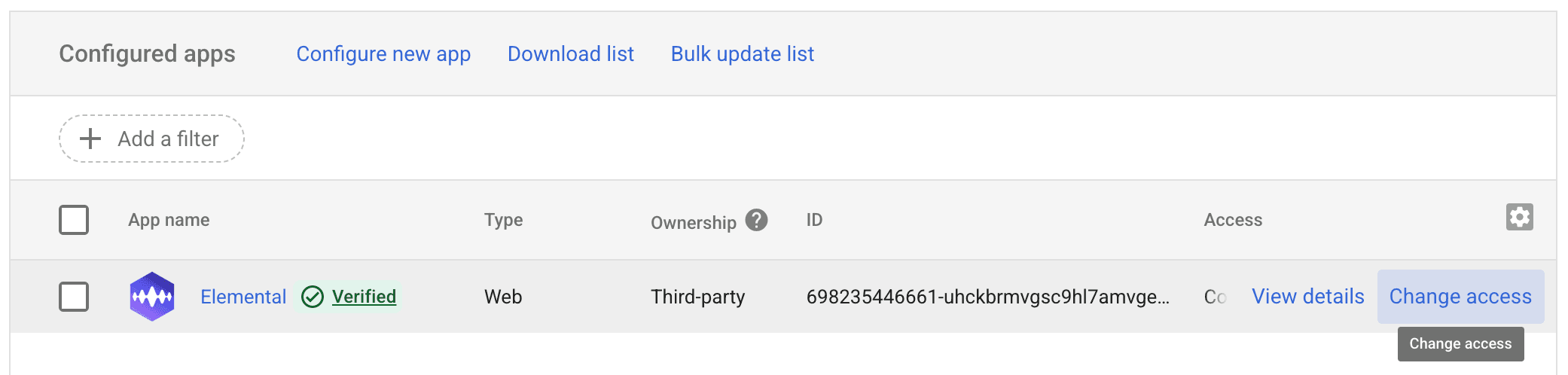
- Locate Elemental in the Configured apps list, shown as a Verified third-party web app.
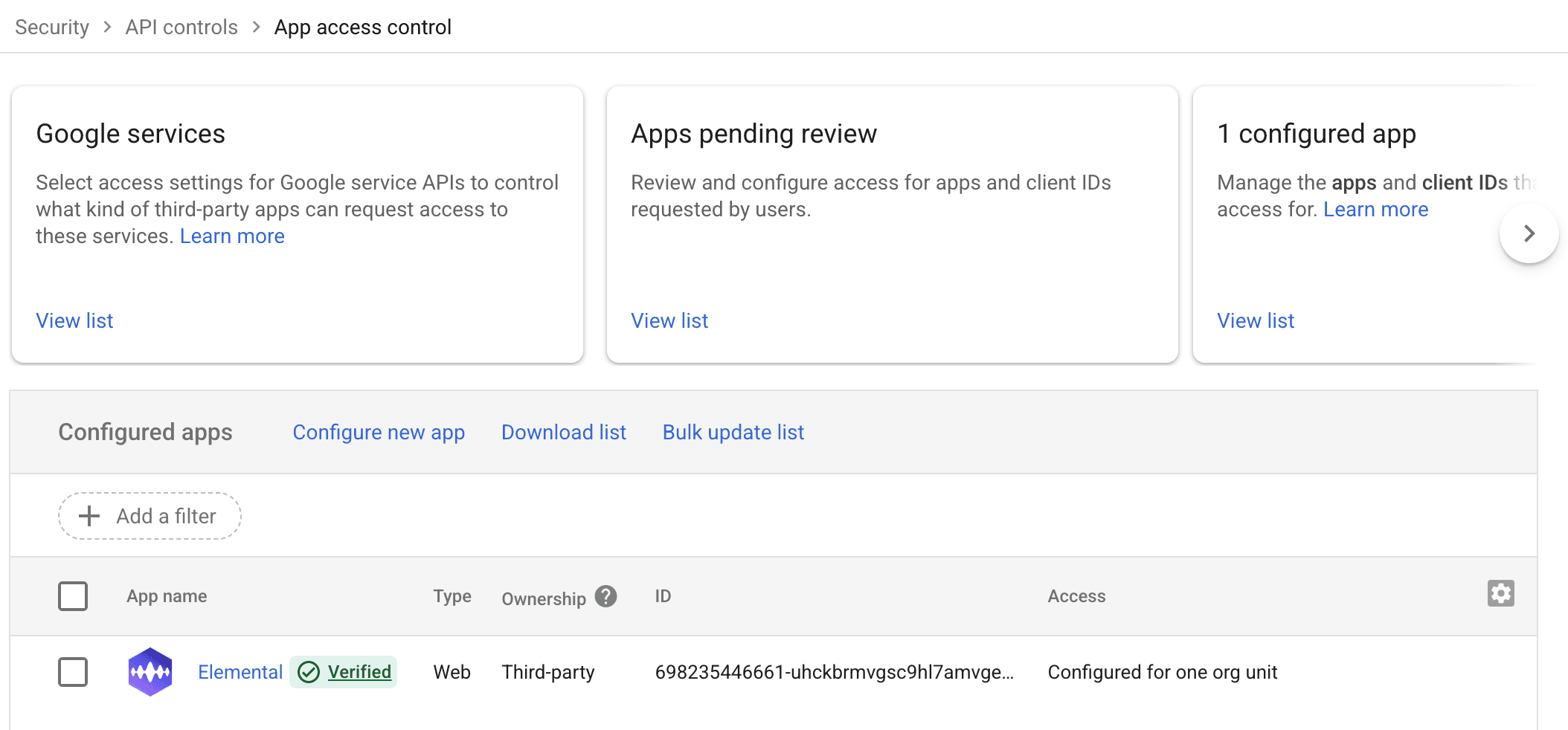
- Hover over the Access column on the Elemental row and select the Change access button that appears.
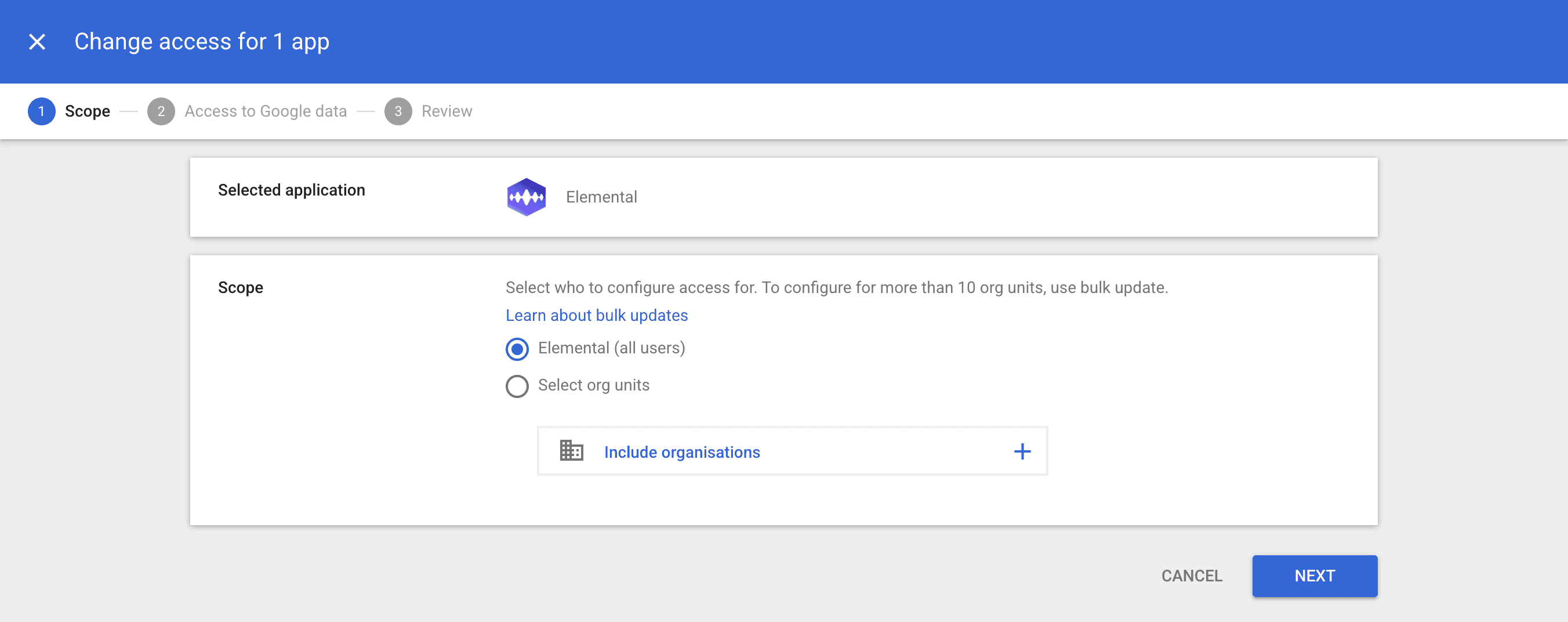
- On the Scope step, choose Elemental (all users) to grant access for your whole organisation, or Select org units to grant it to the organisational units your staff and students belong to.
- On the Access to Google data step, select Specific Google data. This is the most secure option, and the one we recommend, because it grants Elemental only the scopes it needs. Confirm Classroom shows 5 scopes and Google sign-in shows 3, so all 8 scopes are granted, then continue to the Review step and finish.
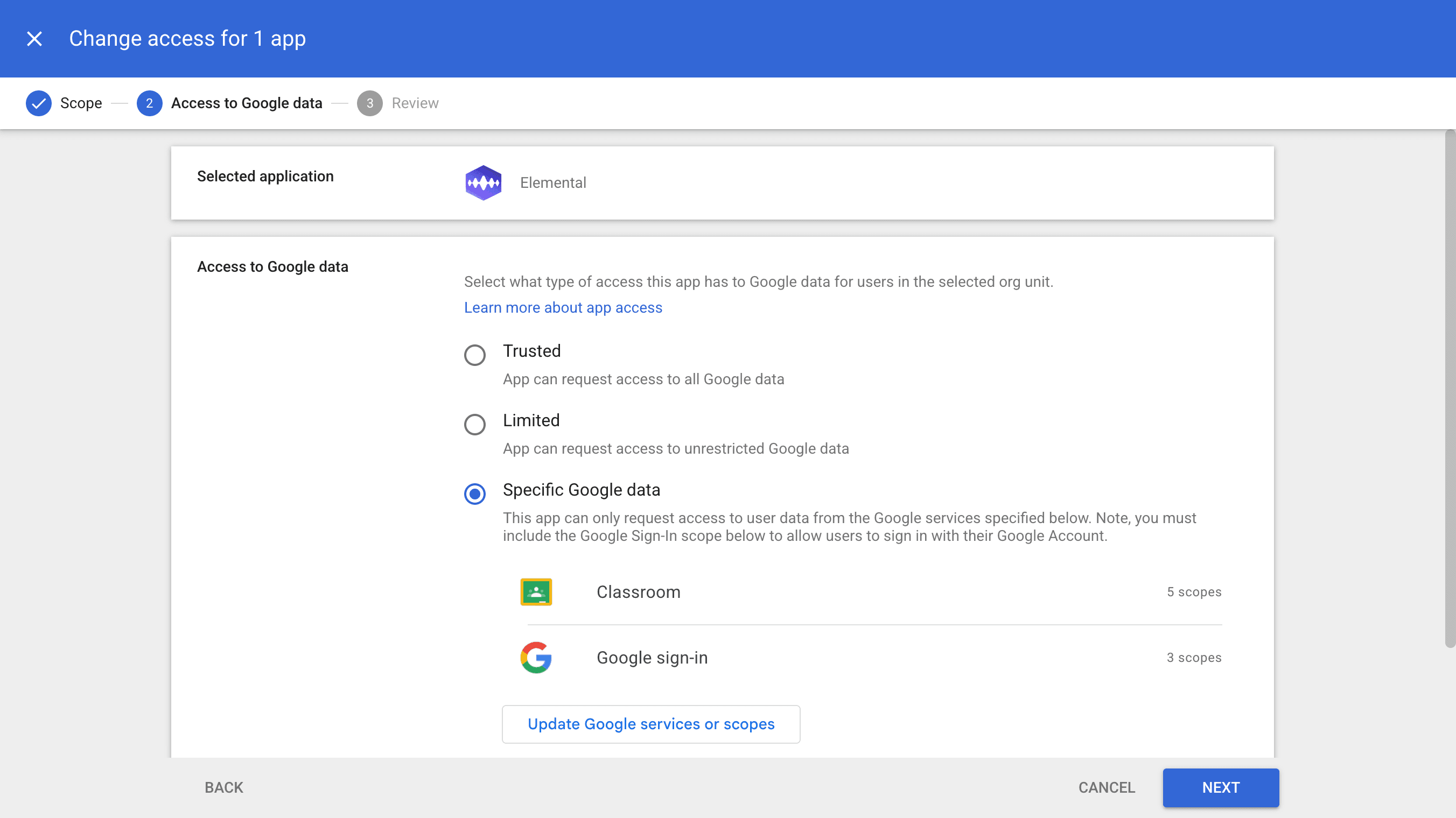
If any of the 8 scopes are missing under Specific Google data, select Update Google services or scopes, then Add more OAuth scopes, and add the missing scopes from the list below one at a time:
https://www.googleapis.com/auth/classroom.courses.readonlyhttps://www.googleapis.com/auth/classroom.coursework.mehttps://www.googleapis.com/auth/classroom.coursework.studentshttps://www.googleapis.com/auth/classroom.profile.emailshttps://www.googleapis.com/auth/classroom.rosters.readonlyhttps://www.googleapis.com/auth/userinfo.emailhttps://www.googleapis.com/auth/userinfo.profileopenidChecking it worked
Once permissions are granted, confirm that teachers can open the Classes & Students page and that the expected classes are listed. If too many classes appear, you can hide the ones you do not need.
To check the grant itself, open Security › Access and data control › API controls › App access control in the Google Admin console and confirm each of the following:
- Elemental is listed with the correct App ID, marked Verified, and both Google sign-in and Classroom show all scopes granted (3 of 3 and 5 of 5 respectively).
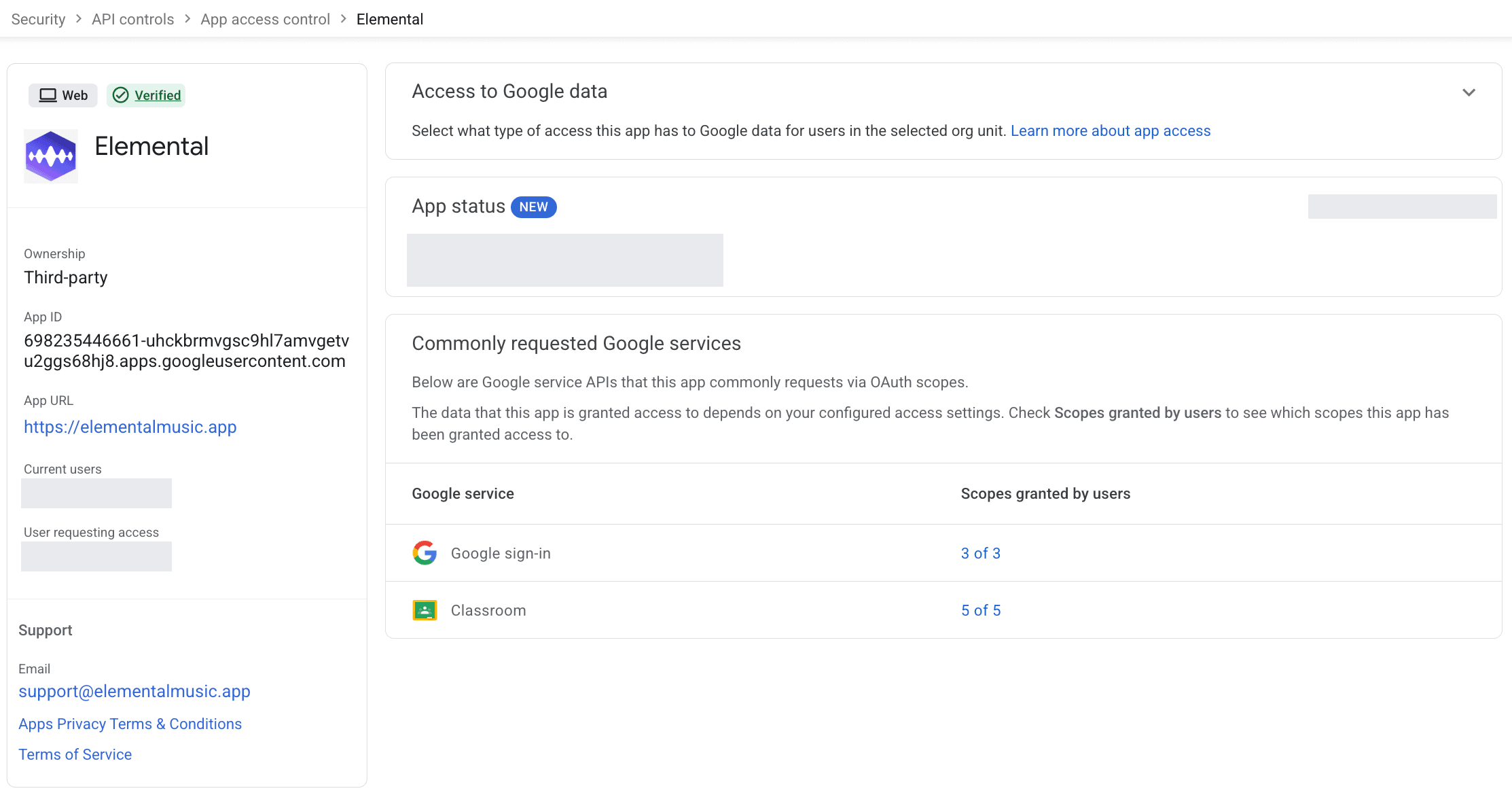
- Selecting either Scopes granted by users row lists each scope with the status Access granted.
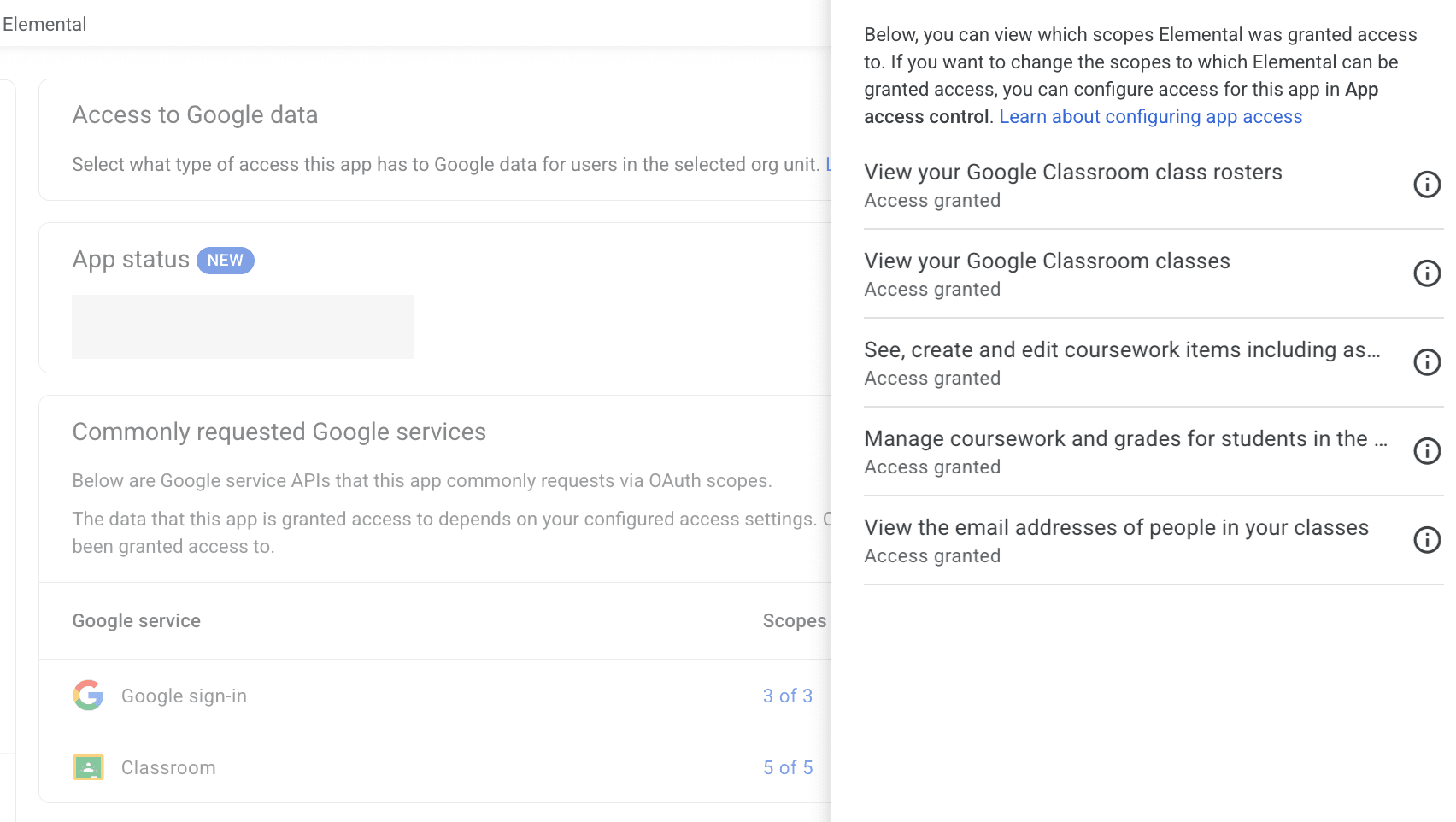
- Under Access to Google data, the status is Specific Google data with all eight permissions granted. We recommend Specific Google data because it grants Elemental only the scopes it needs.
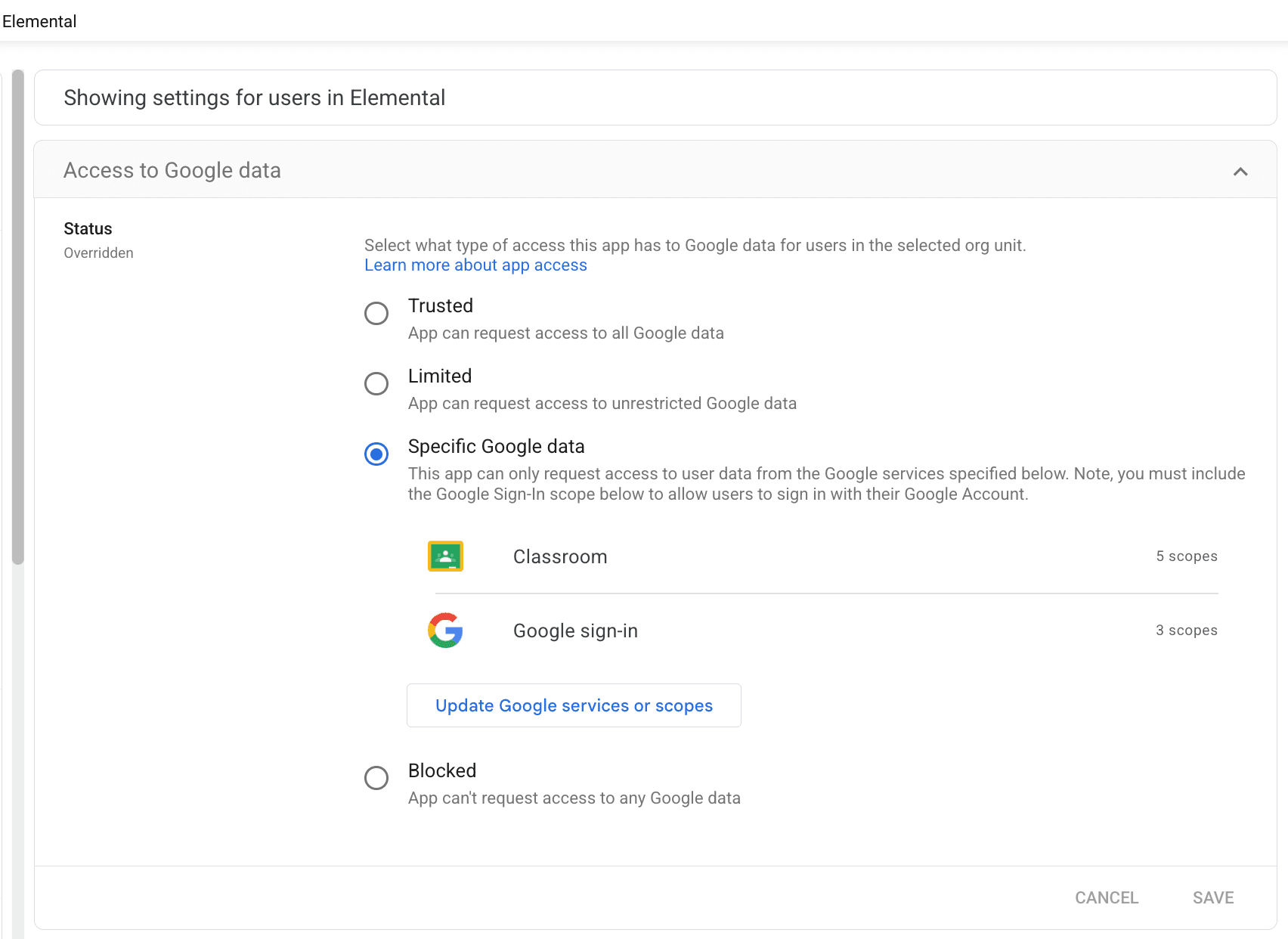
A common cause of problems is the setting being correct for your whole organisation but different for the organisational unit (OU) your staff and students are in. An OU inherits its parent's app access setting until a policy is applied to that OU directly, and once one is, it stays in effect even if you later change the setting for the whole organisation. Use the org unit selector on this page to check the OU your users actually belong to; the status reads Overridden where an OU has its own policy.
To see the workflow teachers and students follow once connected, from assigning homework through to marks being returned to Google Classroom, read our Sharing Homework and Marks with Google Classroom help article.
Data Protection Impact Assessments (DPIAs)
We are happy to support the completion of a Data Protection Impact Assessment (DPIA), including any security questionnaires. Our DPIA information pack and a blank template are on the Documents page, and you can reach us at privacy@elementalmusic.app.





















Ready to get started?
Start your 30-day free trial today. No payment details required.